---
title: "Rice items and variants"
space: "Setup Guide"
url: "https://jmtradelink.com/setup/set-up-the-system/09-items-and-variants"
updated: "2026-11-12"
---
The rice that the exporter sells is set up as one item template with variants. The template is the rice, for example **IR-64**. Each variant is one grade of it, for example **IR-64-Parboiled-10%**: parboiled rice with 10% broken grains. The administrator sets the template once, and then makes one variant for each grade.
At the end of this page, your rice grade shows in the **Item** filter of the Cheapest Port Board.
```mermaid
flowchart TD
A["Item template IR-64
(Has Variants)"] --> B["Variant IR-64-Parboiled-10%"]
A --> C["Other grades, for example
Raw 5%"]
B --> D["Rate template and
Cheapest Port Board"]
```
## Before you start
- You need the Item Manager role to add or change an item. The **Administrator** user has all roles.
- These records must exist:
- The units **Kg**, **50 KG** and **MT**. See [Currencies, exchange rates and units](/setup/set-up-the-system/03-currencies-and-uoms).
- The HS code **10063010**. See [Customs tariff (HS) numbers](/setup/set-up-the-system/08-customs-tariff-number).
- The item attributes **Processing** (values **Raw** and **Parboiled**) and **Broken** (values **5%**, **10%** and **25%**). In the search bar, type **Item Attribute** and open the list. Open the attribute, or click **Add Item Attribute**, and add its values in the table.
- The heap inspection template. See [Contract and heap inspection templates](/setup/set-up-the-system/12-inspection-templates).
- The demo data has the template **IR-64** and the variant **IR-64-Parboiled-10%**. Open them to see finished ones. See [Install and remove demo data](/setup/settings-and-users/03-install-and-remove-demo-data).
## Steps
### See the demo template
1. In the search bar, type **Item** and open the list. Open **IR-64**. The title shows the item code **IR-64** and the tag **Template**.
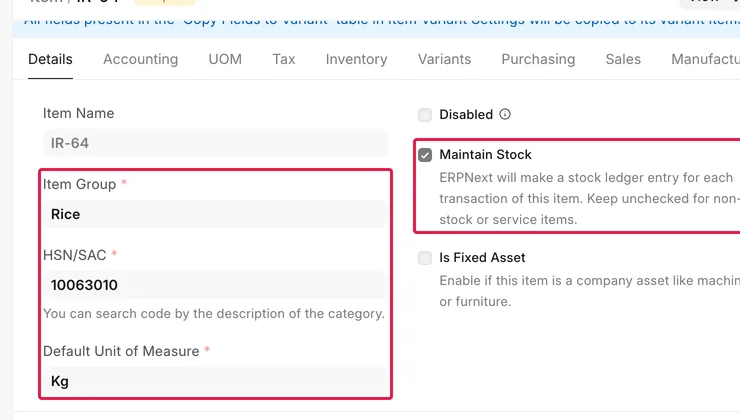
2. On the **Details** tab, see the main fields:
- **Item Group**: **Rice**.
- **HSN/SAC**: **10063010**, the code for GST.
- **Default Unit of Measure**: **Kg**. This is the stock unit.
- **Maintain Stock**: ticked.
Set **Maintain Stock**, the packs (UOMs), the HS code and the **Heap Inspection Template** on the template. When you save it, the system copies them to every variant. Change them on the template, not on one variant.
3. Lower on the **Details** tab, in **Item Attributes**, **Has Variants** is ticked.
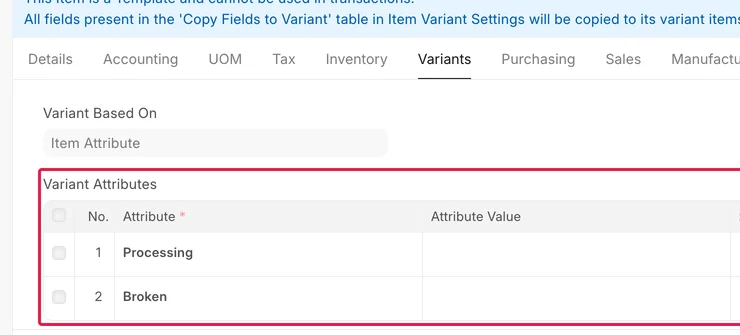
4. Open the **Variants** tab. The **Variant Attributes** table has two rows: **Processing** and **Broken**. Each variant takes one value of each attribute, for example **Parboiled** and **10%**.
5. Open the **Purchasing** tab and click **Foreign Trade Details**. **Customs Tariff Number** is **10063010**. See [Customs tariff (HS) numbers](/setup/set-up-the-system/08-customs-tariff-number).
6. Open the **Quality** tab:
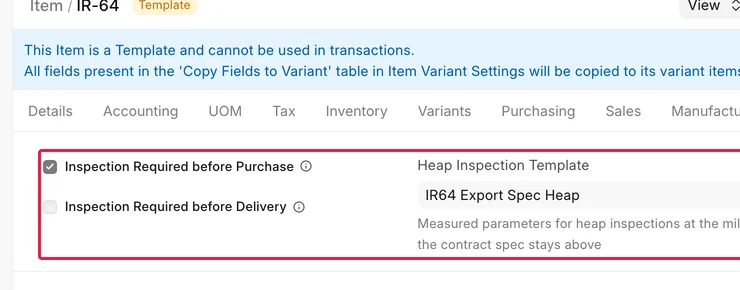
- **Inspection Required before Purchase**: ticked. The system asks for a quality inspection when the rice comes in from the mill.
- **Heap Inspection Template**: **IR64 Export Spec Heap**. The inspector uses it to check the heap of rice at the mill.
### See the demo variant
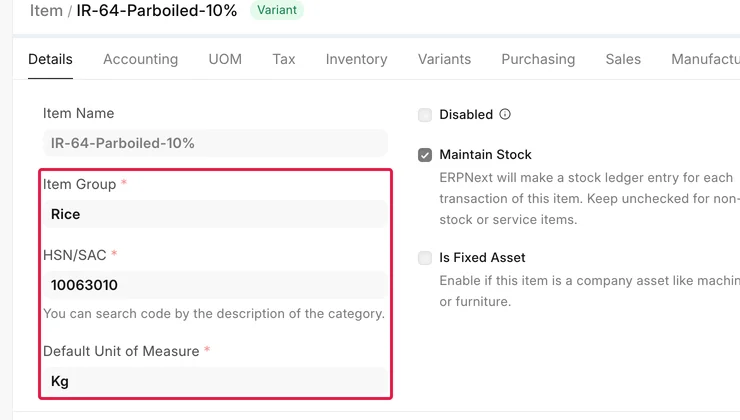
7. Go back to the list and open **IR-64-Parboiled-10%**. The blue bar at the top says that it is a variant of **IR-64**. **Item Group**, **HSN/SAC** and **Default Unit of Measure** are the same as on the template.
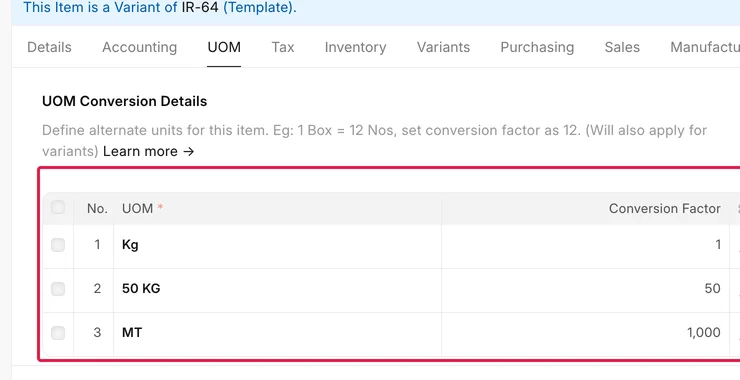
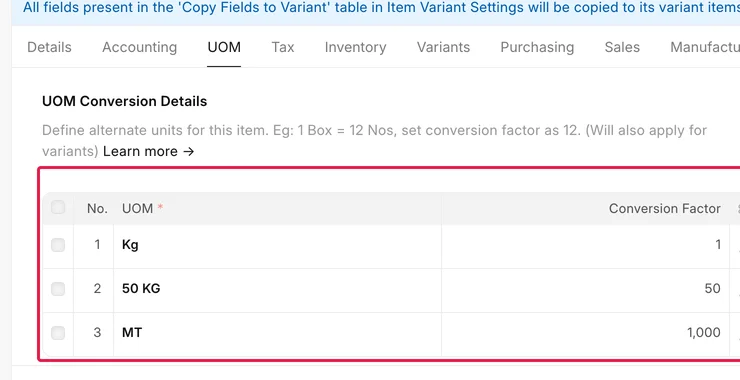
8. Open the **UOM** tab. The **UOM Conversion Details** table gives the weight of each pack in kg: **50 KG** is 50, and **MT** is 1,000. The variant has the same packs as the template, because the system copies them from the template.
### Make your template
9. In the item list, click **Add Item**. Fill the fields of steps 1 to 6 for your rice: **Item Code**, **Item Group** **Rice**, **HSN/SAC**, **Default Unit of Measure** **Kg**, **Has Variants** with the attributes, **Customs Tariff Number**, and the fields of the **Quality** tab. Add the packs, for example **50 KG** = 50, in the **UOM** tab. The demo template has **Kg**, **50 KG** and **MT**.
10. Click **Save**.
### Make a variant
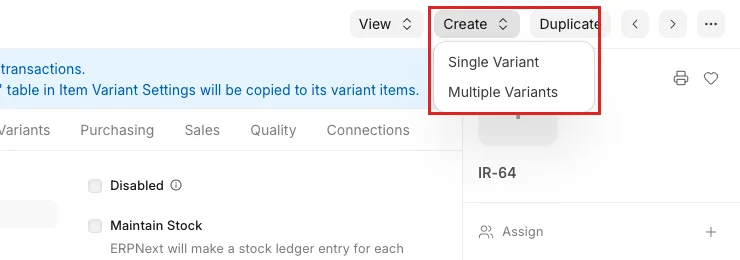
11. Open the template. Click **Create**, then **Single Variant**.
12. The **Create Variant** dialog opens. Select one value for each attribute, for example **Processing** **Parboiled** and **Broken** **10%**.
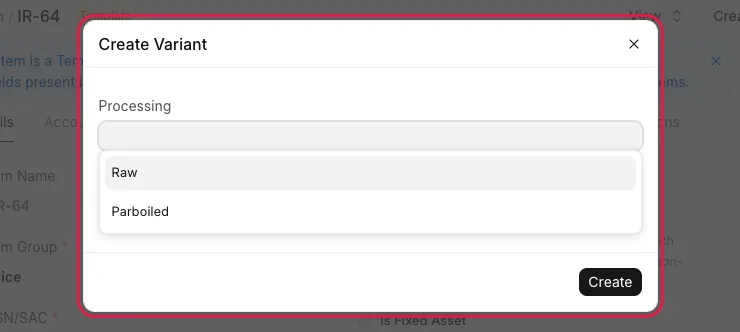
13. Click **Create**. The system makes the variant and names it from the template and the values, for example **IR-64-Parboiled-10%**. It copies the fields of the template to the variant.
### See which fields go to the variants
14. In the search bar, type **Item Variant Settings** and open it. The **Fields** table in **Copy Fields to Variant** lists the fields that the system copies from the template to the variants. The table shows the system names of the fields, for example **gst_hsn_code** for **HSN/SAC**. Do not change this list.
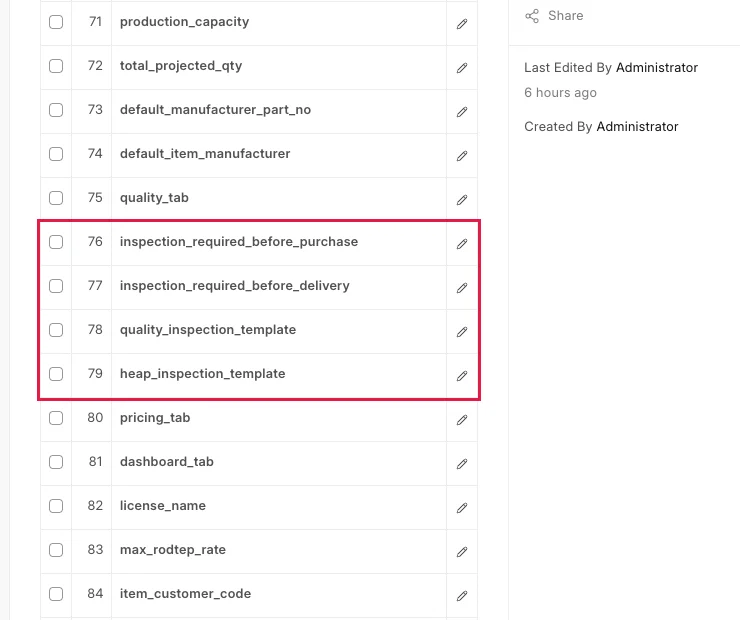
The list includes **heap_inspection_template**, **inspection_required_before_purchase**, **customs_tariff_number**, **gst_hsn_code**, **is_stock_item** (Maintain Stock) and **uoms**. When you save the template, the system copies these fields to every variant.
## Check it worked
1. A mill adds your grade to its rate template and sends a rate. See [Add a rice mill](/setup/onboard-suppliers/02-add-a-rice-mill).
2. Open the **Cheapest Port Board**. Your grade shows in the **Item** filter. See [Read the Cheapest Port Board](/setup/cost-the-deal/01-read-the-cheapest-port-board).
## Good to know
- Set the fields on the template, not on each variant. Set the **Heap Inspection Template** on the template too: when you save the template, every variant gets it.
- Warning: when you save a template, the system overwrites these fields on all its variants: **Maintain Stock**, the table of units, the HS code and the **Heap Inspection Template**. A change that you make on one variant is lost at the next save of the template.
- A rate template is for the template item, for example **IR-64**. Its **Grade** rows give each variant. See [Charge types](/setup/set-up-the-system/07-charge-types).
- The **Item** filter of the Cheapest Port Board shows only the grades that have a rate today.
## Next
[Bag items](/setup/set-up-the-system/10-bag-items)