
The costing: Rates & Charges tab
The Rates & Charges tab holds every cost of the deal: the rice, the bags, the port charges, the sea freight and the charges at the port of discharge. It also holds the exchange rates that change foreign money to rupees.
At the end of this page, you can check each charge of a costing and get fresh rates when a rate is old.
Before you start
- Read The costing: Deal and Cargo tabs.
- In the demo, open the Won costing of the story (JMC-PI-2627-017).
Steps
-
Open the costing and click the Rates & Charges tab.
-
Read the Exchange Rates section.
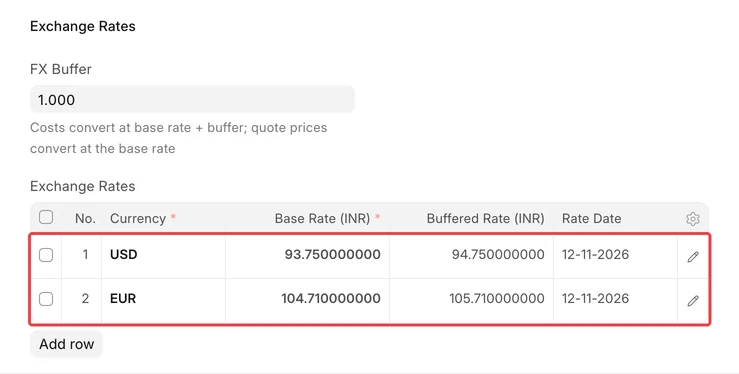
- Exchange Rates shows one row for each foreign currency in the costing. Base Rate (INR) is the rate of the Rate Date. In the demo, USD is 93.75 and EUR is 104.71.
- FX Buffer is a safety margin in rupees. In the demo it is 1.000. The system adds it to the base rate, so Buffered Rate (INR) is 94.75 for USD. Costs are changed to rupees at the buffered rate. Quote prices are changed at the base rate.
-
Read the Charges table. Each row is one cost.
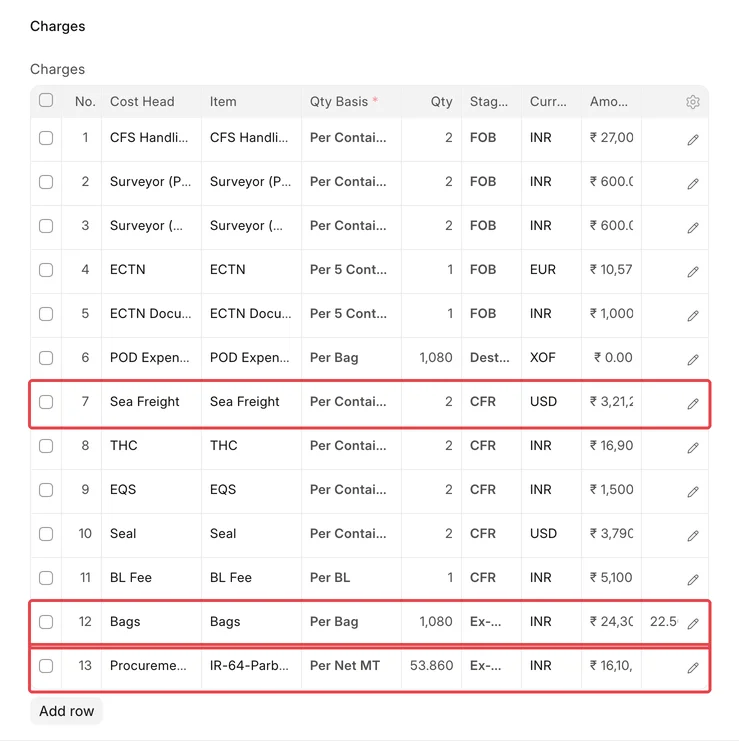
| Column | What it means | Example from the demo |
|---|---|---|
| Cost Head | The name of the cost. | Procurement Cost (the rice) |
| Qty Basis | What the rate is for: one net MT, one bag, one container, one bill of lading. | Per Net MT |
| Qty | How many of the Qty Basis the deal has. | 53.860 |
| Stage | The point of the trip where the cost is paid: Ex-Works, FOB, CFR or Destination. | Ex-Works |
| Currency | The currency of the rate. | INR |
| Rate | The price for one unit of the Qty Basis. | 29,900 |
| Amount (INR) | Qty × Rate, in rupees. | ₹ 16,10,402.04 |
In the demo, the rice (Procurement Cost) comes from Sri Venkateswara Rice Mill at ₹ 29,900 per net MT. The bags (Bags) come from Sunrise Polymers at ₹ 22.50 per bag. Sea Freight is USD 1,695 per container.
A costing that you make from the Cheapest Port Board has the same 13 cost heads as the story costing: Procurement Cost, Bags, CFS Handling, Surveyor (POL), Surveyor (Mill), ECTN, ECTN Documentation, Sea Freight, THC, EQS, Seal, BL Fee and POD Expense. They come from the Loading Costing Template and the Discharge Costing Template of the ports, and from the port lane rates. The rates are the rates of the day you made the costing, so some amounts can be different from the story costing.
-
On your own costing, to change a rate by hand, click the row, type the new Rate and click Save. The system calculates the amounts and the totals again.
-
To get new rates into the costing, click Combinations.
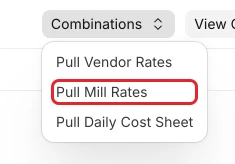
| Menu item | What it does |
|---|---|
| Pull Vendor Rates | Copies the rates that suppliers sent on a supplier quotation for this costing. |
| Pull Mill Rates | Copies the rates of today from the rate sheets of the mills, and the freight rates of each route, into Raw Rates. |
| Pull Daily Cost Sheet | Copies today's rates from the Daily Cost Sheet report. See Other ways to start a costing. |
A message shows how many rates were pulled. The rates go into the Raw Vendor Rates section, in the Raw Rates table. The Charges do not change yet. To choose which rates go into the charges, see Pick the best combination.
Check it worked
Each row of the Charges table has a Rate and a Currency. No orange message shows at the top of the costing.
Good to know
- The charges of each port come from the costing templates of the route: the Loading Costing Template and the Discharge Costing Template on the Deal tab. To change a charge for every new costing, change the template. See Costing templates per port.
- When a template charge was not updated for a long time, the costing shows the orange message "Some charge rates are stale — re-check them before quoting." The number of days is the Rate Staleness Threshold (Days) in Export Settings. Check the rate with the supplier, then update the template or the row.
- The Raw Rates table is a copy of the rates on the day you pulled them. Later changes on the rate sheets do not change it. Pull again to get the new rates.
- The Vendor Sundries section shows only when a selected supplier added small fees to the quotation.