
Sometimes the buyer says no. Record why on the quotation. Later, you can see which deals you lost and why: to a lower price, to a faster delivery or to another quality.
At the end of this page, the quotation shows Lost with the reason, and its costing shows Lost too.
Before you start
- The costing has a submitted quotation. See Send the quotation and proforma invoice.
- You need the Sales User role to open quotations. Ask your administrator.
- In the demo, the Lost costing from Chennai (JMC-PI-2627-016) shows a lost deal. Its quotation (SAL-QTN-2026-00007) is Lost.
Steps
-
Open the costing and click View Quotation. The quotation opens.
-
Click Set as Lost.

-
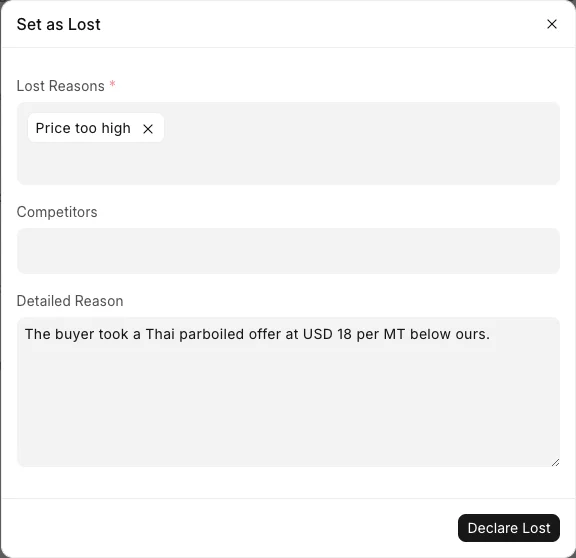
In the dialog, fill in the fields:
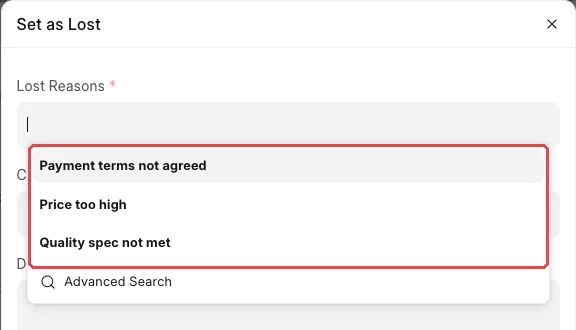
- Lost Reasons: select one or more reasons, for example Price too high.
- Competitors: the other exporter, if you know it.
- Detailed Reason: what the buyer told you. In the demo: "The buyer took a Thai parboiled offer at USD 18 per MT below ours."
-
Click Declare Lost. The quotation status changes to Lost. The costing of this quotation also changes to Lost.
Check it worked
The quotation shows the status Lost. In the demo, the quotation of the Chennai costing shows Lost, with the lost reason Price too high.

Open the Chennai costing (JMC-PI-2627-016). Its status is Lost.

Good to know
- The lost reason is on the quotation, not on the costing.
- The list of reasons is the Quotation Lost Reason list. The demo adds three reasons: Price too high, Quality spec not met and Payment terms not agreed. Your administrator can add more reasons to the list.
- To make a new offer to the same buyer later, make a new costing. See Create a costing from the board.
Next
Last updated 2 weeks ago
Was this helpful?