
Pick the best combination
When you have more than one rate for a charge, for example sea freight from four shipping lines and rice from two mills, the system can try every mix of rates. Each mix is a combination. The system ranks the combinations from the lowest landed cost per bag to the highest, and applies the cheapest one to the costing. You can select a different one.
At the end of this page, you can compare the combinations of a costing and select the one to quote.
Before you start
- The costing has rates in the Raw Rates table. See step 5 of The costing: Rates & Charges tab.
- In the demo, open the Quoted costing from Visakhapatnam (JMC-PI-2627-015). It has raw rates from both ports and the combinations made from them.
Steps
-
Open the costing.
-
Click Combinations > Generate Combinations. The system makes every combination, ranks them and selects the cheapest one. A message shows how many combinations it made and which one it applied.
In the demo, the combinations exist. Go to step 3, and do not click Select This Combination in step 6: the other pages use the demo values. To see a selected combination, open the combination with Rank 1.
-
Click Combinations > View Combinations. The Combination Comparison report opens, filtered to this costing.
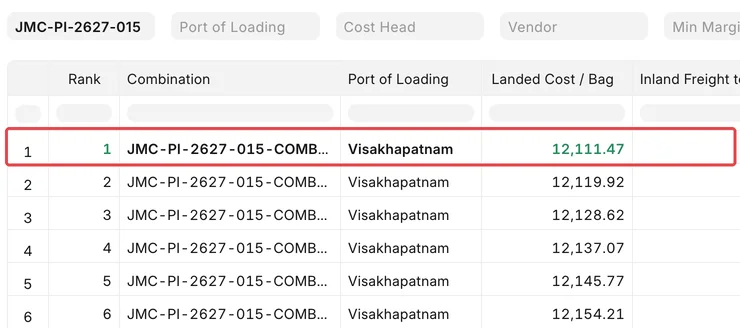
Each row is one combination. Rank 1 has the lowest Landed Cost / Bag. The selected combination shows in green with a tick. The columns show the cost at each stage: FOR Total (INR), FOB (INR, Indian Port), Freight to Destination (INR), CIF Total (INR), Cost / MT (USD), and the buyer's Margin / Bag and Margin %.
-
To see fewer rows, use the filters at the top of the report:
- Port of Loading: only the combinations from one port.
- Cost Head and Vendor: only the combinations that use this vendor for this cost, for example one shipping line for Sea Freight.
- Min Margin %: only the combinations that give the buyer at least this margin.
- Only Selected: only the selected combination.
-
Click a combination in the Combination column. The combination opens.

The Rate Picks table shows the rate it uses for each cost head. The Landed Cost and Margin sections show its totals.
-
To quote this combination, click Select This Combination. The button shows only on a combination that is not selected. The system writes its rates into the Charges of the costing and opens the costing. A message shows "Combination selected — rates written to" and the costing name.
Check it worked
The selected combination shows the green message "This is the selected winning combination." and its Selected box is ticked. The costing shows the status Costing Selected.
Good to know
- Only one combination of a costing is selected at a time. When you select another one, the first one goes back to Generated.
- To undo a selection, open the selected combination and click Deselect. The rates already in the Charges stay. You can then generate the combinations again.
- If a rate changed after you generated the combinations, the select stops with "Parity check failed". Click Generate Combinations again.
- The rates that a selected combination uses are frozen in the Raw Rates table. A new pull does not replace them.