
Company, address, bank account, fiscal year
The administrator sets the legal identity of the exporter: the company, its tax numbers, its address, its bank account and the fiscal year. The proforma invoice, the commercial invoice and the packing list print these values.
At the end of this page, the company has its tax ID and IEC code, a company address, a bank account with the bank details and a fiscal year.
Before you start
- You need the System Manager role. For the bank account, you also need the Accounts Manager role. The Administrator user has all roles.
- Open the demo records to see finished ones, then make yours. The demo company is Navchetan Agro Exports Pvt Ltd.
- These are standard ERPNext forms. This page explains only the fields that the export documents use.
Steps
Set the tax ID and the IEC code of the company
-
In the search bar, type Company and open the list. Open your company. On the demo, open Navchetan Agro Exports Pvt Ltd.
-
On the Details tab, check Default Currency. For an exporter in India, it is INR.
-
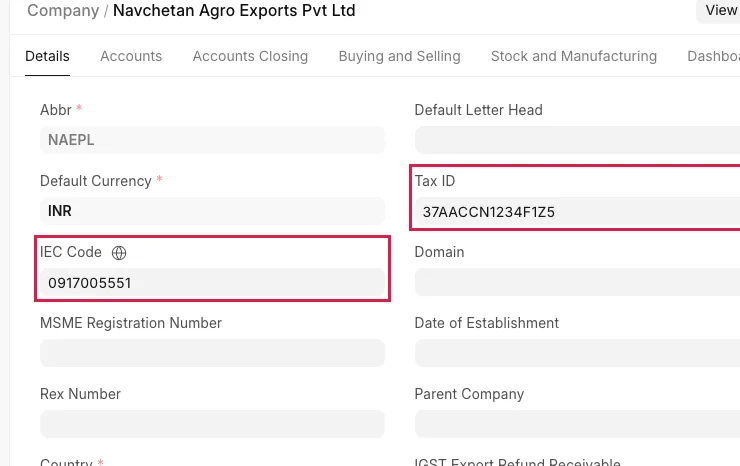
In Tax ID, type the GSTIN of the company. On the demo, it is 37AACCN1234F1Z5.
-
In IEC Code, type the Import Export Code of the company. On the demo, it is 0917005551. The proforma invoice prints it in the IEC No. cell.
-
Click Save.
Add the company address
-
In the search bar, type Address and open the list. Click Add Address. If a small dialog opens, click Edit Full Form.
-
Fill the address:
- Address Title: the name of the company.
- Address Type: Billing.
- Address Line 1, City, State, Postal Code and Country.
-
Tick Preferred Billing Address.
-
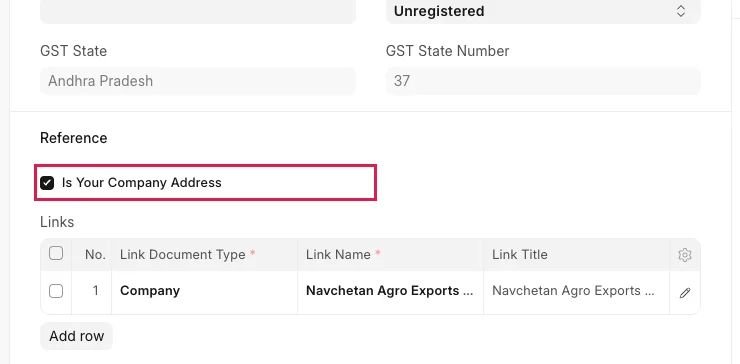
In the Reference section, tick Is Your Company Address.
-
In the Links table, add a row: Link Document Type is Company, and Link Name is your company.
-
Click Save.
On the demo, open Navchetan Agro Exports Pvt Ltd-Billing: Plot 14, Port Industrial Area, Visakhapatnam 530035, Andhra Pradesh, India.
Add the bank
-
In the search bar, type Bank and open the list. Open the bank of the company, or click Add Bank and type the Bank Name.
-
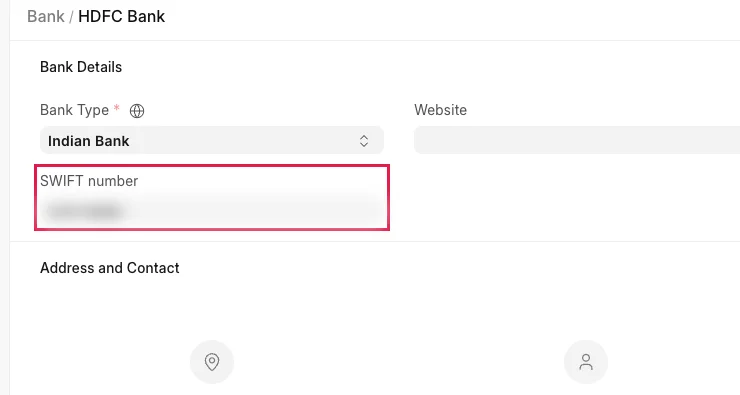
In Bank Type, select Indian Bank for a bank in India. The field is mandatory. The other option is Foreign Bank.
-
In SWIFT number, type the SWIFT code of the bank. Your buyer uses it to send the payment.
-
Click Save.
On the demo, open HDFC Bank. Its Bank Type is Indian Bank and it has a SWIFT number.
Set the default bank account of the company
The company must have a ledger account for the bank in its chart of accounts. The bank account of step 20 connects to this ledger account.
-
In the search bar, type Chart of Accounts and open it for your company.
-
In the tree, click Bank Accounts, then click Add Child.
-
In New Account Name, type the name of the ledger account, for example "HDFC Bank". Keep Is Group clear. Set Account Type to Bank. Click Create New.
-
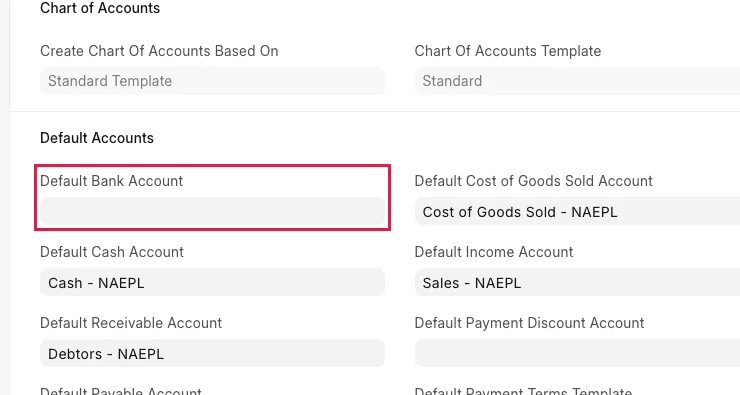
Open your company again and click the Accounts tab. In Default Bank Account, select the ledger account of step 18. Click Save.
Add the bank account
-
In the search bar, type Bank Account and open the list. Click Add Bank Account. If a small dialog opens, click Edit Full Form.
-
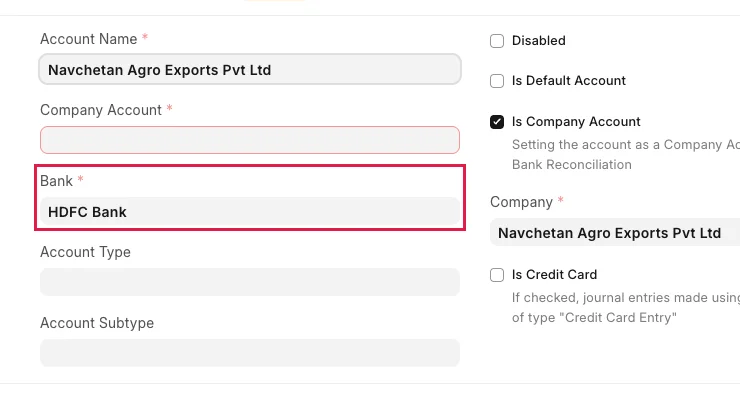
Fill the top of the form:
- Account Name: the name of the account holder. The proforma invoice prints it as Beneficiary.
- Bank: the bank of step 12, for example HDFC Bank.
- Tick Is Company Account first. Company Account and Company show only after you tick it, and Company Account is then mandatory.
- Company Account: the ledger account of step 18.
- Company: your company.
-
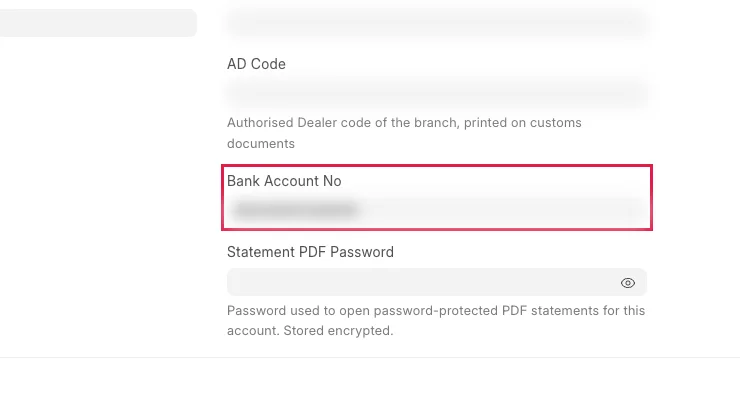
Fill the bank details:
- Branch Address: the branch, a comma, then the city. For example "Visakhapatnam Main Branch, Visakhapatnam - 530001, Andhra Pradesh". The text before the first comma prints as Branch. The text after it prints as City.
- Type the IFSC in IFS Code. Leave Branch Code empty.
- AD Code: the Authorised Dealer code of the branch.
- Bank Account No: the account number.
-
Click Save.
Check the fiscal year
-
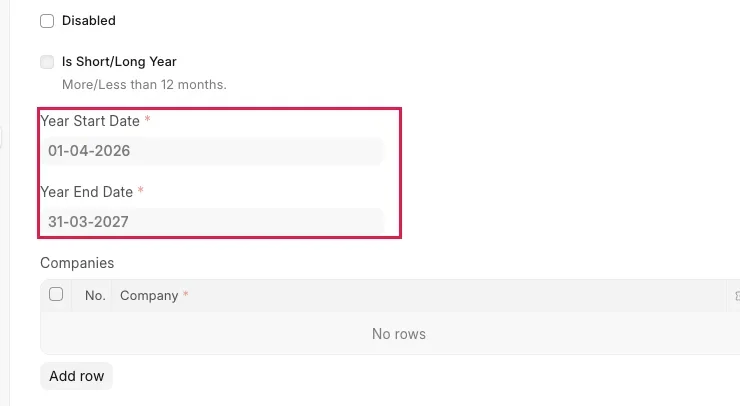
In the search bar, type Fiscal Year and open the list. Open the current year. On the demo, open 2026-2027: Year Start Date 01-04-2026 and Year End Date 31-03-2027.
-
If the year does not exist, click Add Fiscal Year. Type the Year Start Date and the Year End Date, and click Save. Leave the Companies table empty to use the year for all companies.
Check it worked
- Open a quotation that has a proforma invoice. See Send the quotation and proforma invoice.
- Open the Proforma Invoice print. The top left shows the company name and the company address. The IEC No. cell shows the IEC code.
- The Sellers Bank Details block shows the rows Beneficiary, Name of Bank, Branch, City, A/C No., IFSC Code, SWIFT Code and AD Code. A row shows only when its field has a value.
Good to know
- The export documents read the company from Exporter Company in Export Settings. See Export Settings.
- The documents print the bank account that is connected to the Default Bank Account of the company, with Is Company Account ticked. If the Sellers Bank Details block is empty, check steps 16 to 22.
- The demo data does not make a bank account. The demo company has only the group Bank Accounts (its Account Type is Bank, but it is a group). It has no bank ledger account, so you cannot select anything in Default Bank Account, and the Sellers Bank Details block of the demo proforma invoice is empty. Your real company needs steps 16 to 23.
- If the company has more than one address, the documents use the address with Preferred Billing Address ticked.