
A costing template has the standard charges of one port. The administrator makes two types:
- A Loading template has the charges that you pay at the port of loading, before the cargo is on the ship. For example the surveyor and the ECTN.
- A Discharge template has the charges that the buyer pays at the port of discharge, and the import duty values for that port.
The ocean freight is not in a costing template. It is in a port lane rate. See Port lane rates (ocean freight).
At the end of this page, a new costing from your loading port fills the Loading Costing Template with your template.
Before you start
- You need the System Manager role. The demo user Priya has it.
- The ports, the shipping lines and the cost heads must exist. See Ports and pins, Shipping lines and Cost heads.
- The demo data has five finished templates. Cotonou Export is the loading template for Visakhapatnam, and Cotonou Discharge is the discharge template for Cotonou. See Install and remove demo data.
Steps
See the demo loading template
-
In the search bar, type Costing Template and open the list. Open Cotonou Export.
-
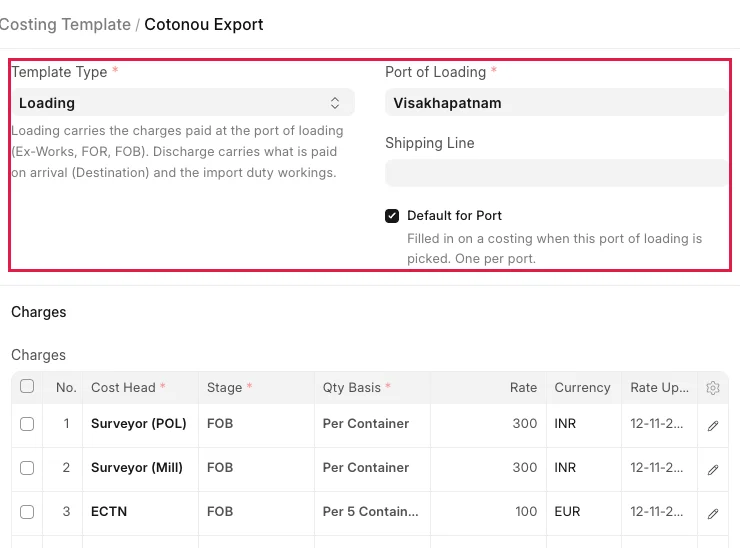
Look at the top of the form. Template Type is Loading, Port of Loading is Visakhapatnam, Shipping Line is empty and Default for Port is ticked.
-
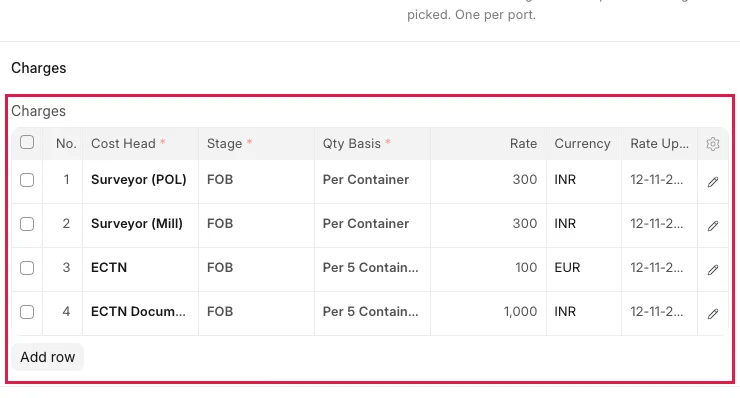
Look at the Charges table. Each row is one charge, for example Surveyor (POL), 300 INR Per Container, and ECTN, 100 EUR Per 5 Containers. All the rows have the stage FOB.
See the demo discharge template
-
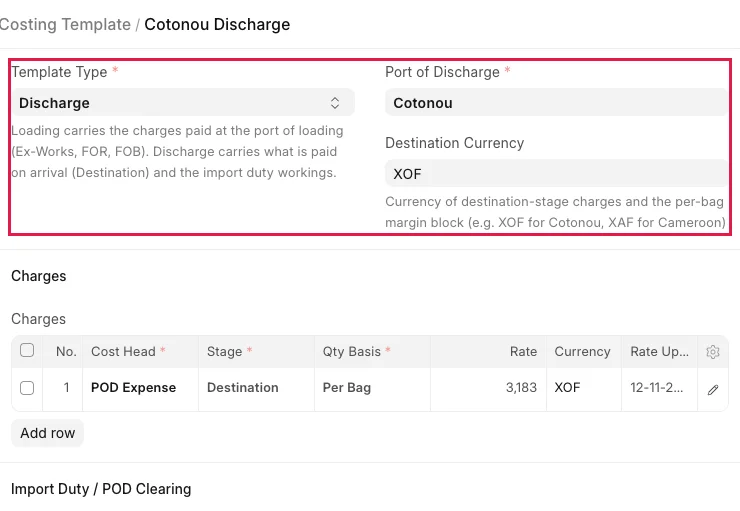
Go back to the list and open Cotonou Discharge. Template Type is Discharge, Port of Discharge is Cotonou and Destination Currency is XOF.
-
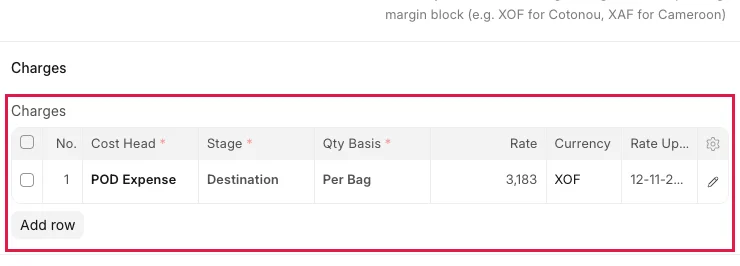
Look at the Charges table. It has one row: POD Expense, stage Destination, 3,183 XOF Per Bag.
-
Scroll down to Import Duty / POD Clearing. The demo values are BFU % 0.200, Tax % 0.025, Transitor per Container 2,05,000.00 and Commission per Bag 150.00.
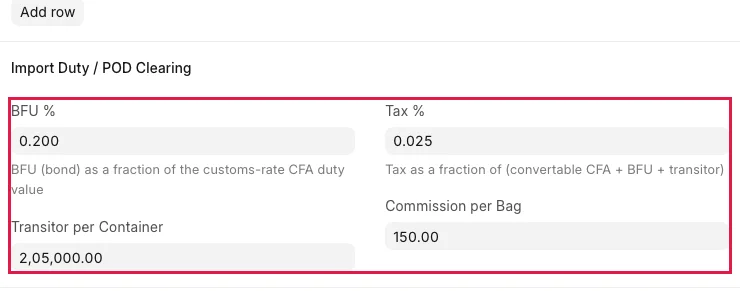
BFU % and Tax % are fractions, not percents. Type 0.20 for 20 % and 0.025 for 2.5 %. The form shows the value as you type it, for example 0.200.
Add your template
-
Go back to the list and click Add Costing Template.
-
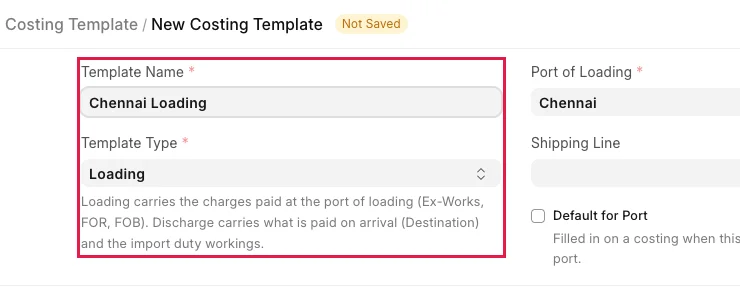
Type the Template Name, for example "Chennai Loading".
-
Select the Template Type. The fields below change with the type.
- For Loading: select the Port of Loading. Select a Shipping Line only if the charges are for one line. Tick Default for Port if this is the main template of the port.
- For Discharge: select the Port of Discharge and the Destination Currency, then fill Import Duty / POD Clearing.
-
In Charges, click Add row for each charge, and fill the fields in the table below.
-
Click Save.
| Field | What it does |
|---|---|
| Template Name | The name of the template. Priya sees it on the costing. |
| Template Type | Loading or Discharge. |
| Port of Loading | Loading only. The port where the charges are paid. |
| Shipping Line | Loading only. Empty: any line can use the template. Set: a costing on this line takes this template first. |
| Default for Port | Loading only. A new costing from this port starts with this template, unless a template for the costing's shipping line exists. Only one loading template of a port can be the default. |
| Port of Discharge | Discharge only. The port where the buyer pays the charges. |
| Destination Currency | Discharge only. The currency of the destination charges and of the per-bag values, for example XOF for Cotonou. |
| Cost Head | The charge. See Cost heads. |
| Stage | Where the charge is paid. A Loading template takes only Ex-Works, FOR and FOB. A Discharge template takes only Destination. |
| Qty Basis | How the system counts the charge, for example Per Container, Per Bag or Per BL. |
| Rate, Currency | The amount for one unit of the basis, and its currency. |
| Rate Updated On | The system sets the date when you add the row or change the rate. |
| BFU % | Discharge. The BFU (bond) as a fraction of the duty value. |
| Tax % | Discharge. The tax as a fraction. |
| Transitor per Container | Discharge. The clearing agent's charge for each container, in the destination currency. |
| Commission per Bag | Discharge. The commission for each bag, in the destination currency. |
Check it worked
- In the search bar, type Export Costing, and click Add Export Costing.
- Select your Port of Loading, for example Chennai. Loading Costing Template fills with your template.
- Close the form without saving.
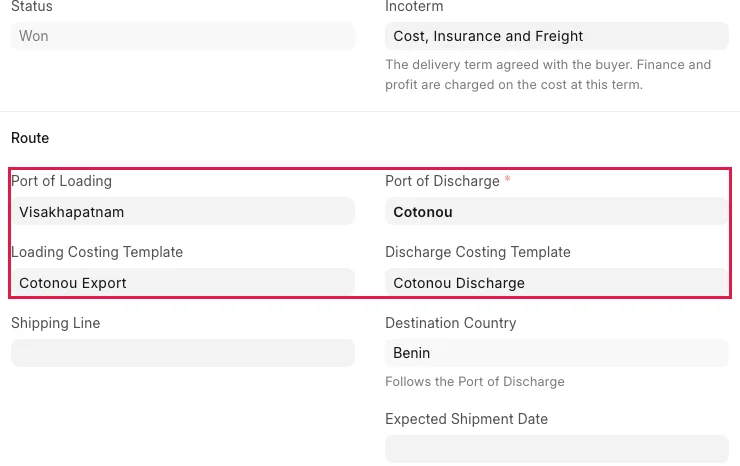
A filled costing looks like this demo costing (JMC-PI-2627-020): Port of Loading is Visakhapatnam, so Loading Costing Template shows Cotonou Export. Port of Discharge is Cotonou, so Discharge Costing Template shows Cotonou Discharge.
See The costing: Rates & Charges tab.
Good to know
- When a port has more than one loading template, a new costing takes the template for its shipping line first, then a template for any line (the default first). In the demo, Nhava Sheva has Maersk – Lome and MSC – Lome, one for each line.
- If you select a template on a costing yourself, the system keeps your choice.
- Priya can change BFU %, Tax %, Transitor per Container and Commission per Bag on one costing. The change stays on that costing. See The costing: Destination Margin tab.
- A loading template must not have the ocean freight. The system stops a save with a CFR or CIF charge, because the freight is in the port lane rate.