
Send the quotation and proforma invoice
When the price is ready, Priya makes a Quotation for the buyer from the costing, and a Proforma Invoice as a PDF. The quotation is the offer. The proforma invoice is the document that the buyer uses to arrange the payment.
At the end of this page, you can make the quotation and the proforma invoice of a costing.
Before you start
- The costing has a Customer and a Quoted Price per MT. See The costing: Cost Build-up and Quote tabs.
- You need the Sales User role to make and open quotations. Ask your administrator.
- In the demo, open the Quoted costing from Visakhapatnam (JMC-PI-2627-015). It already has a quotation and a proforma invoice.
Steps
-
Open the costing.
-
If the status is Draft or Rates Received, and you typed the rates by hand, click Mark as Costed. The message "Costing marked as costed — you can now create a Quotation." shows. The status changes to Costing Selected.
If you selected a combination, the status is already Costing Selected. See Pick the best combination.
-
Click the Terms & Declarations tab. Select the Payment Terms, for example 100% Payment at Sight. Type the PI Validity Date: the last day the buyer can accept the offer. Click Save.
-
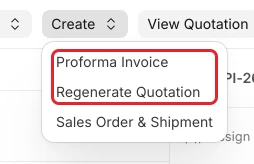
Click Create > Quotation. If the costing already has a quotation, the menu shows Regenerate Quotation.
-
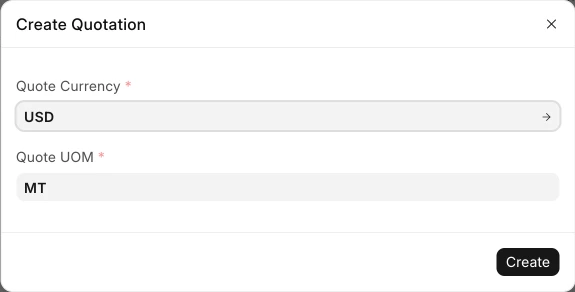
In the Create Quotation dialog, check the Quote Currency and the Quote UOM. In the demo they are USD and MT.
-
Click Create. The system makes a draft Quotation for the buyer, at the quoted price, and opens it. The costing status changes to Quoted.
-
Check the quotation and click Submit. Click Yes. The quotation status changes to Open. Send it to the buyer.
-
Click the browser's Back button to go back to the costing. Click Create > Proforma Invoice. The system makes the proforma invoice as a PDF, attaches it to the costing and opens it in a new browser tab. The message "Proforma Invoice attached" shows.
Check it worked
-
On the Deal tab, the Outcome section shows the Quotation.

-
The Attachments list in the right sidebar of the costing shows the proforma invoice PDF. In the demo, it is Proforma Invoice - JMC-PI-2627-015.pdf.
-
The View Quotation button at the top opens the quotation.
Good to know
- To change the price after you made the quotation, change the costing, click Save, then click Create > Regenerate Quotation. The system replaces the draft quotation with a new one. If the quotation is already submitted, the system stops with "Quotation … is already submitted — cancel it before re-quoting." Cancel the quotation first.
- You can make the proforma invoice before you make or submit the quotation. The costing status must be Costing Selected, Quoted or Won.
- You can make the proforma invoice again at any time before the shipment is made. The system replaces the PDF with a new one. When the shipment is made, the proforma invoice goes with it.
- If the buyer says no, see Record a lost deal.