
Ravi arrives at the mill. He takes samples from the heap and measures them.
At the end of this page, the heap has its readings and photos, and Priya can accept it.
Before you start
Finish Add a heap. Ravi signs in as shown in Ravi's quick start. The pictures on this page show the draft heap of the Inspecting shipment (MAT-QA-2026-00009). Ravi has filled its readings and photos already.
Steps
-
In the My Inspections workspace, click Heap Inspections.
-
Open the heap of the Inspecting shipment.
-
In the Readings table, for each row with Numeric ticked, click the pencil at the end of the row and type the readings:
- Moisture: Reading 1 13.2, Reading 2 13.4.
- Broken: Reading 1 4.1.
- Damage & Discolour: Reading 1 1.5.
- Foreign Matter: Reading 1 0.2.
- Length: Reading 1 6.1.
Leave the other rows empty. They show Accepted.
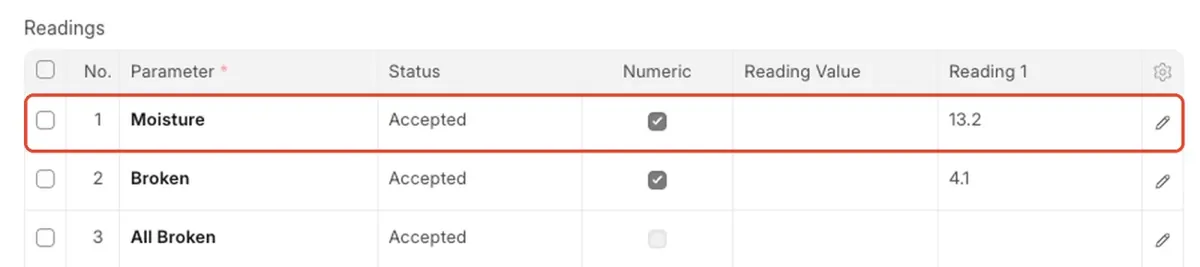
The table shows only Reading 1. To see the other readings of a row, click the pencil at the end of the row.
-
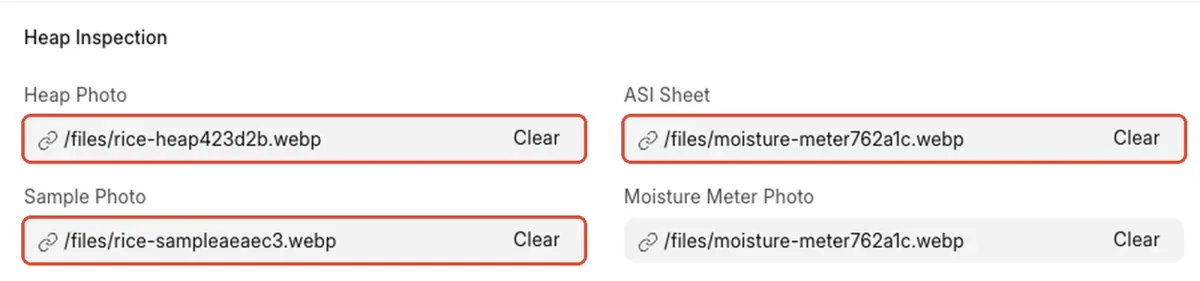
Under Heap Inspection, click Attach under each field, pick the file and click Upload:
- Heap Photo.
- Sample Photo.
- ASI Sheet, the signed sheet of the inspection agency.
- Moisture Meter Photo, if you have one.
The picture shows the fields after the files are attached.
-
Click Save. The Not Saved label at the top goes away.
Check it worked
The Status field at the top of the heap shows Accepted. Each row of the Readings table shows Accepted.
Good to know
The system checks each reading when you save. A row with Numeric ticked is Accepted only when every reading in it is inside the range. One reading outside the range makes the row and the heap Rejected.
Ravi cannot submit the heap. Priya submits it on the next page.