
A cost head is one kind of charge in the price of a deal, for example the rice, the bags, the ocean freight or the THC. The administrator keeps the list of cost heads, and sets how the system counts each one.
At the end of this page, your cost head shows in the Charges table of a costing template and of a costing.
Before you start
- You need the System Manager role.
- If the cost head is for the rice itself, the rice item must exist. See Rice items and variants.
- The demo data has the full list of cost heads. Open Procurement Cost and Bags to see two finished ones. See Install and remove demo data.
Steps
Open the tree of cost heads
-
In the search bar, type Cost Head and open it. The Cost Head Tree opens. If a list opens, switch the view to Tree.
-
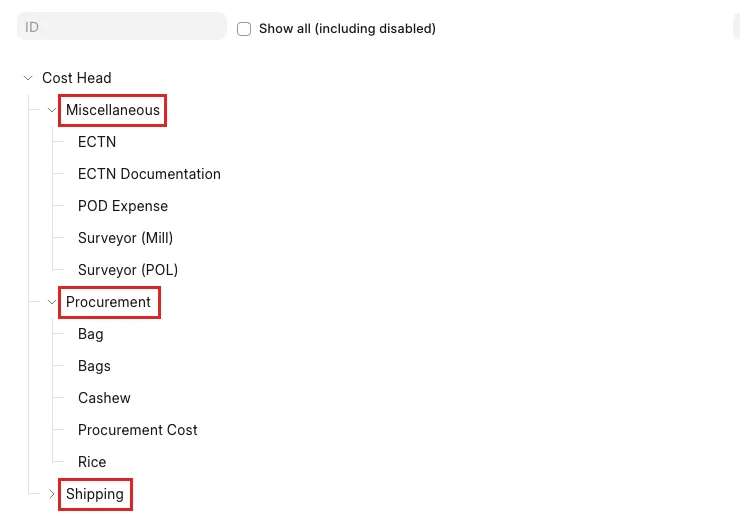
Click a group to open it. The demo has three groups under Cost Head:
- Procurement: the goods that you buy, for example Procurement Cost (the rice) and Bags.
- Shipping: the charges to move the cargo, for example THC, BL Fee and Ocean Freight.
- Miscellaneous: the other charges, for example ECTN and POD Expense.
See two finished cost heads
-
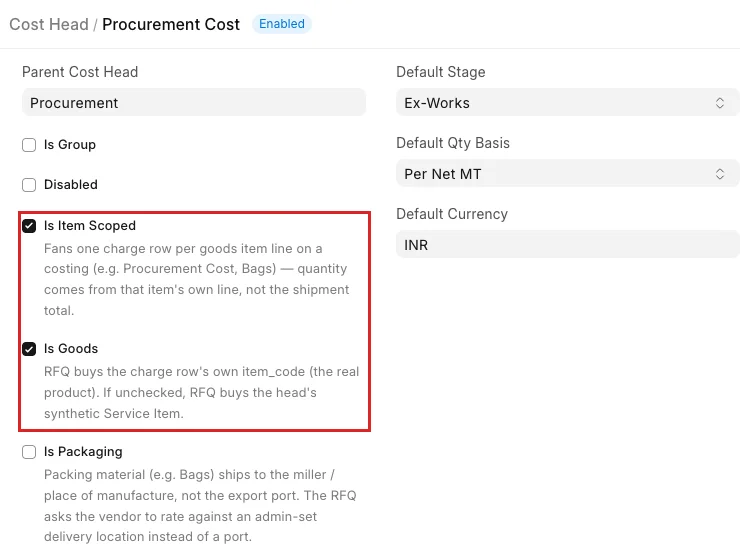
Under Procurement, click Procurement Cost, then click the pencil icon next to it. The form opens. Is Item Scoped and Is Goods are ticked.
-
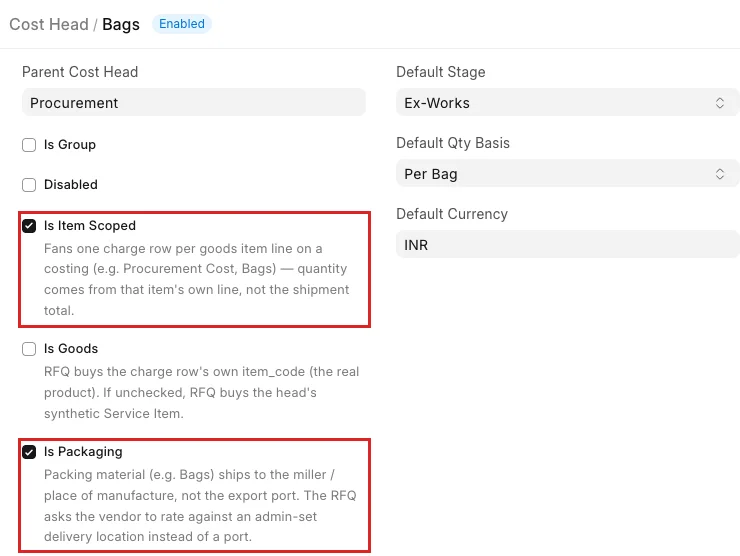
Go back to the tree. Open Bags in the same way. Is Item Scoped and Is Packaging are ticked.
Add your cost head
-
In the tree, click the group that the new cost head goes in, for example Miscellaneous.
-
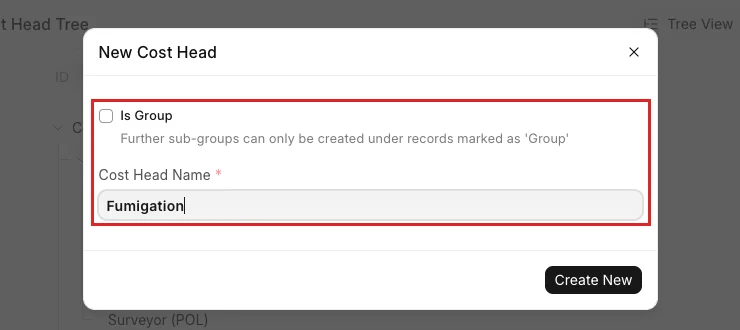
Click Add Cost Head at the top right. The New Cost Head dialog opens.
-
Type the Cost Head Name, for example "Fumigation". Tick Is Group only if the new cost head is a group for other cost heads.
-
Click Create New. In the tree, click the new cost head, then click the pencil icon next to it. Make sure that Parent Cost Head is the correct group, and fill the fields in the table below. Click Save.
| Field | What it does |
|---|---|
| Cost Head Name | The name of the charge. The name is the name of the record. |
| Parent Cost Head | The group that the cost head is in. Only a group can be a parent. |
| Is Group | Tick it for a group, for example Shipping. A group holds other cost heads and has no rate. A group that has cost heads in it must stay a group. |
| Disabled | Tick it to stop using the cost head. |
| Is Item Scoped | The costing gets one row of this charge for each item line. The quantity comes from that item line, not from the total of the shipment. Tick it for the rice and the bags. |
| Is Goods | The charge is the product itself, for example the rice. The rate of the mill goes on this row, and the purchase order buys the real item. |
| Is Packaging | The charge is the packing, for example the bags. The bag rate goes on this row. The bags go to the mill, not to the port. |
| Default Stage | The point in the price where the charge is added: Ex-Works, FOR, FOB, CFR, CIF or Destination. |
| Default Qty Basis | How the system counts the quantity, for example Per Net MT, Per Bag, Per Container, Per BL or Lumpsum. |
| Default Currency | The currency of the rate, for example USD for ocean freight. If it is empty, the system uses INR. |
| Goods Item | The product item of a goods cost head, for your reference. The demo keeps it empty: each item line of the costing gives the item. |
| Service Item | The system makes this item, or uses the item with the same name if one exists, when you save a cost head that is not a group and not goods. It has the same name as the cost head. You cannot change it. |
| Account Head | Optional. The account for this charge. The system does not post the charges to accounts now. |
| Description | Optional. A note about the charge. |
Check it worked
- Open a costing template and click Add row in the Charges table. Select your cost head in Cost Head. Stage, Qty Basis and Currency fill from the cost head. See Costing templates.
Good to know
- A new cost head starts at Ex-Works and Per Net MT. Change them to the right stage and basis.
- Default Stage, Default Qty Basis and Default Currency are only the start values. You can change them on each row of a costing template or a costing.
- A port lane rate takes only cost heads with the stage CFR or CIF. See Port lane rates (ocean freight).
- Do not delete a cost head that costings use. Tick Disabled instead.
- In the demo, Procurement Cost counts Per Net MT in INR, and Bags counts Per Bag in INR. Both are at the stage Ex-Works.