
Build routes on the map
A route is one port lane rate: a port of loading, a port of discharge, a container and, if set, a shipping line. For example Visakhapatnam to Cotonou, 20' FCL. A route is complete when it has three parts: a loading template, the ocean freight and a discharge template. The Export Costing Template page shows all your routes on a map, and tells you which part is missing.
At the end of this page, you can see that the route Visakhapatnam to Cotonou is complete, and you know where to add a missing part.
Before you start
- You need the System Manager or the Purchase Manager role. The demo user Priya has both.
- Each port needs a pin (a location), or its routes do not show on the map. See Ports and pins.
- The parts of a route: Costing templates and Port lane rates (ocean freight).
- The demo data has four routes, for example Visakhapatnam to Cotonou. Nhava Sheva to Lome has two routes, one for MSC and one for Maersk. See Install and remove demo data.
Steps
Open the map
-
Open the Export Management workspace. In the Data section, click Route Rates. You can also type Export Costing Template in the search bar.

-
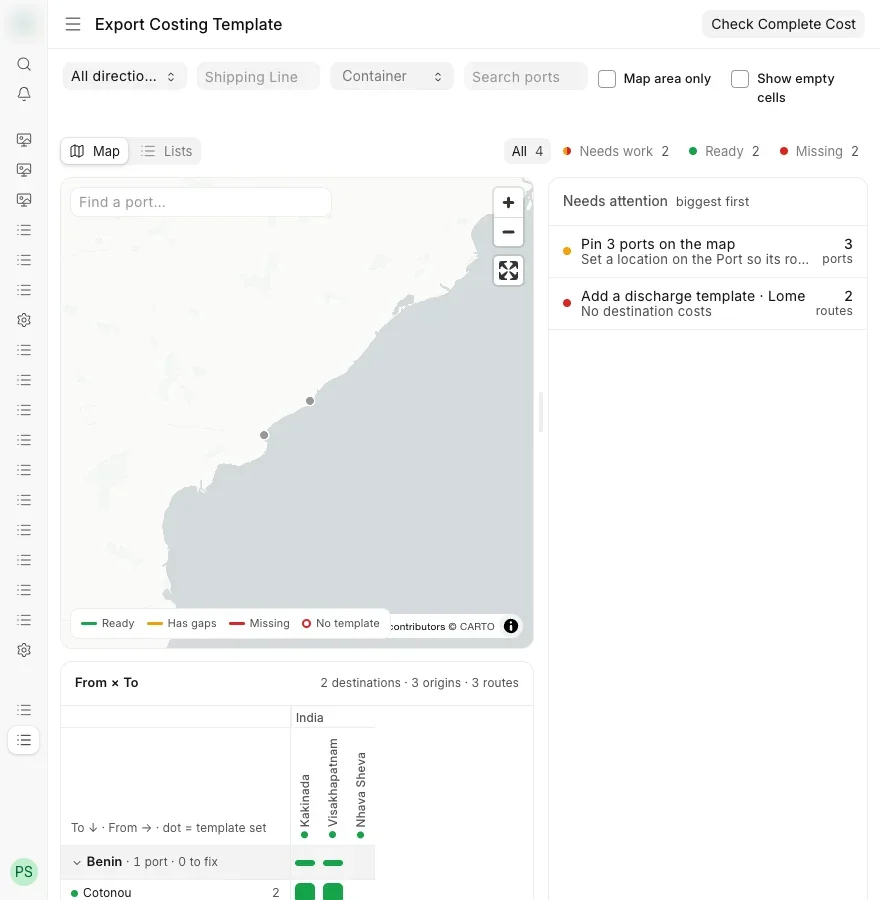
The Export Costing Template page opens in the Map view. It has three parts:
- the map, with the box Find a port… at the top left;
- the From × To grid below the map: one column for each port of loading, one row for each port of discharge, and one cell for each port pair;
- the side panel on the right.
-
Use the filters at the top to show fewer routes: Direction (All directions, Exports, Imports or Cross-trade), Shipping Line, Container, Search ports, Map area only and Show empty cells. The status buttons show the routes with that status, with a count. A button shows only when routes have that status. In the demo, you see All, Needs work, Ready and Missing. Has gaps and Inactive show when routes have these statuses.

Read the status of a route
The map, the grid and the side panel use these statuses:
| Status | What it means |
|---|---|
| Ready (green) | The route has all its parts. |
| Has gaps (amber) | A part exists but is not complete, for example a discharge template with no charges. |
| Missing (red) | A part is not there, for example no discharge template for the port. |
| Inactive (gray) | The port lane rate is disabled. |
| No template (red ring on a port) | An active route uses the port, but the port has no loading template (as a port of loading) or no discharge template (as a port of discharge). |
Fix what needs attention
-
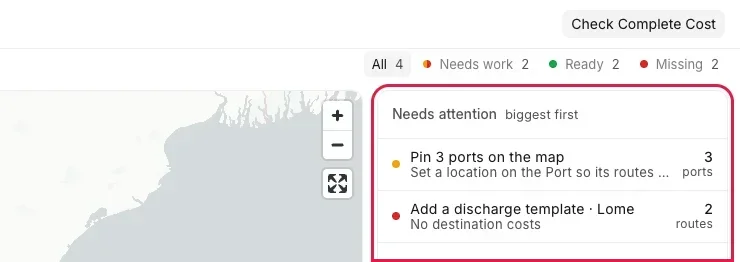
Look at the side panel. Needs attention lists the work to do, the biggest first. In the demo, it shows Pin 3 ports on the map and Add a discharge template · Lome.
-
Click an item to see the ports or the routes that it is about. The items that you can see are:
| Item | What to do |
|---|---|
| Add a loading template · {port} | No port charges on the routes from this port. Add a loading template. |
| Add a discharge template · {port} | No destination costs for this port. Add a discharge template. |
| Add discharge charges · {port} | The discharge template exists but has no charges. Add the charges. |
| Enter ocean freight | A port lane rate has no freight charge. Add the freight. |
| Renew expired rates | The Valid Till date of a port lane rate is past. |
| Re-quote rates older than 60 days | A port lane rate has no Valid Till date, and it is older than 60 days. |
| Pin {n} ports on the map | These ports have no location. Open the port and set its location. |
-
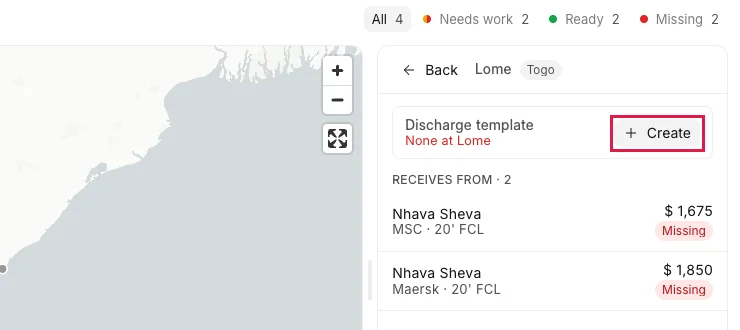
Click Add a discharge template · Lome. The side panel shows the port Lome. Under Discharge template, it shows None at Lome and a Create button.
-
Click Create. A new discharge template opens in a window, with Port of Discharge set to Lome. Fill it as in Costing templates, or close the window without saving. Click Back in the side panel to go back to Needs attention.
Open one route
-
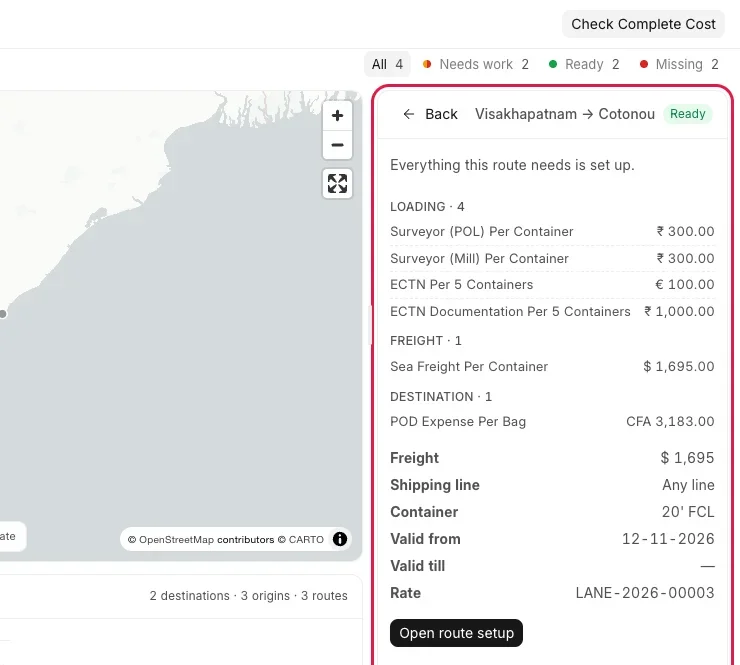
In the From × To grid, click the green cell of Visakhapatnam (column) and Cotonou (row). The side panel shows the route Visakhapatnam → Cotonou with the status Ready, and the text "Everything this route needs is set up."
-
The panel lists the charges of each part: Loading (the 4 charges of Cotonou Export), Freight (Sea Freight, $ 1,695.00 per container) and Destination (POD Expense, CFA 3,183.00 per bag). Below are the Shipping line, Container, Valid from and Valid till of the port lane rate.
Check the complete cost
- Click Open route setup. The Complete Cost window opens for the route. You can also click Check Complete Cost at the top right of the page, and select the Loading Port, Destination, Shipping Line and Container yourself.
- The window shows the route in Loading Port, Destination, Shipping Line and Container, and each part in a card: Loading: Cotonou Export, Discharge: Cotonou Discharge and Route: Visakhapatnam → Cotonou. When a part is missing, the window shows "This complete cost has gaps" at the top, and the card of the missing part has a button Create Loading, Create Discharge or Create Route.
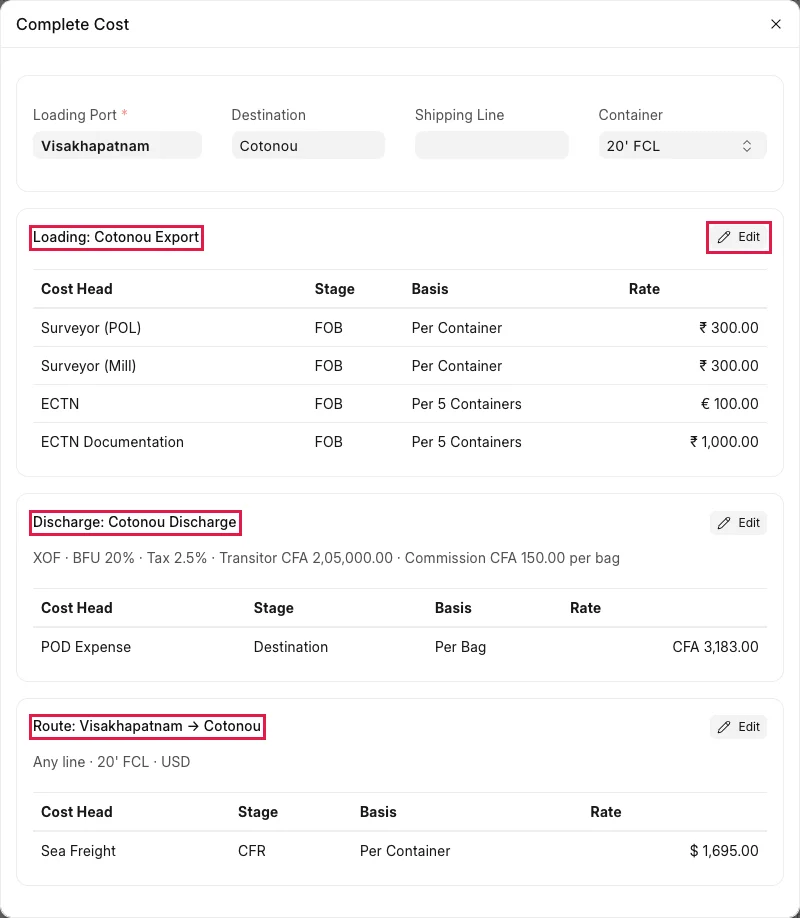
- To change a part, click Edit on its card. The window shows the editor of the part, with Back and Save. Click Back to go back to the complete cost without a change.
Check it worked
-
At the top of the page, click Lists, then the tab Routes.
-
Find the row Visakhapatnam, Cotonou, 20' FCL. The Status is Complete.
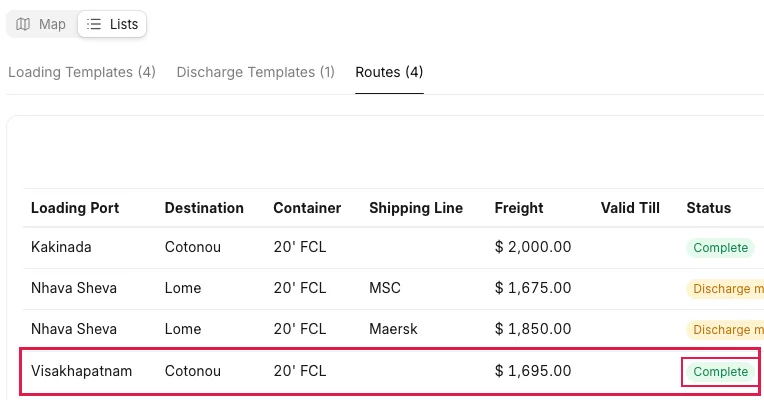
In the Lists view, the Status of a route is Complete, Loading missing, Discharge missing or Inactive. The filters of the Lists view are Port, Shipping Line and Show inactive. The tabs Loading Templates and Discharge Templates list the costing templates. Click New to add one, or click a row to edit it. Click Open complete cost on a route to open the Complete Cost window.
Good to know
- In the demo, Nhava Sheva, Lome and Cotonou have no pin. So the map shows no route line from India to Africa, and the side panel asks you to pin 3 ports. The grid and the Lists view show all the routes.
- A costing uses the same parts as the route: the loading template, the port lane rate and the discharge template. A complete route gives a costing with no missing charge.