
Prepare the export documents
The buyer's bank and the customs office need a set of documents for each shipment. Priya keeps one checklist on the shipment and moves each document to Final.
At the end of this page, every document in the checklist is Final or Not Required, and Priya can download the document pack.
Before you start
Read Watch progress and warnings and Complete the shipment details. Priya signs in as shown in Sign in and find your way.
The checklist comes from the Export Document Template that the administrator sets up in Payment terms and document templates. The demo site has no template record. Only the Shipped demo shipment (SHIP-2026-0051) has its 12 documents. The other demo shipments have no documents yet. On the demo, do not click Generate Documents.
The pictures on this page show the Shipped shipment (SHIP-2026-0051).
Steps
-
In the search bar, type Export Shipment and open the shipment. Open the Documents tab.
-
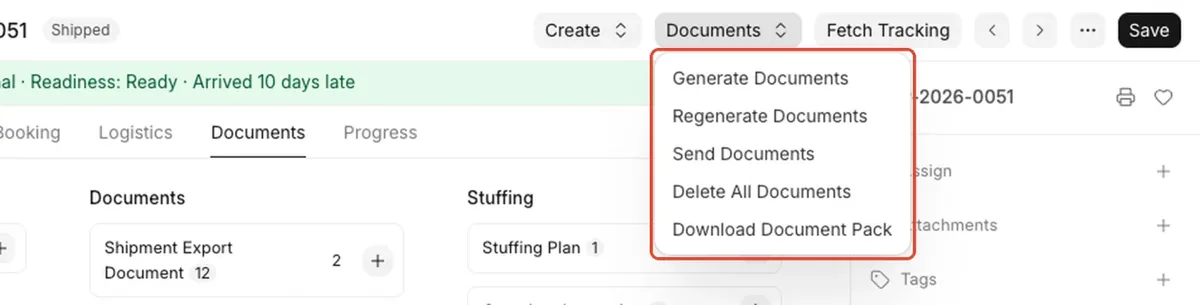
Click Documents at the top right to see the menu.
- Generate Documents opens a dialog that lists every document type that has a print format and is not in the checklist yet. The document types of the template are ticked. Click Generate to add them. When nothing is left to add, it shows "Every document type with a print format is already in the checklist."
- Regenerate Documents makes the files again for documents that were generated before.
- Send Documents opens an email to the external agency for the documents that wait for it. It shows the message "Nothing to Send" when no document waits.
- Delete All Documents asks "Delete every checklist row and its linked export document? Submitted documents will be cancelled first." and clears the checklist.
- Download Document Pack downloads the files of the shipment in one pack.
-
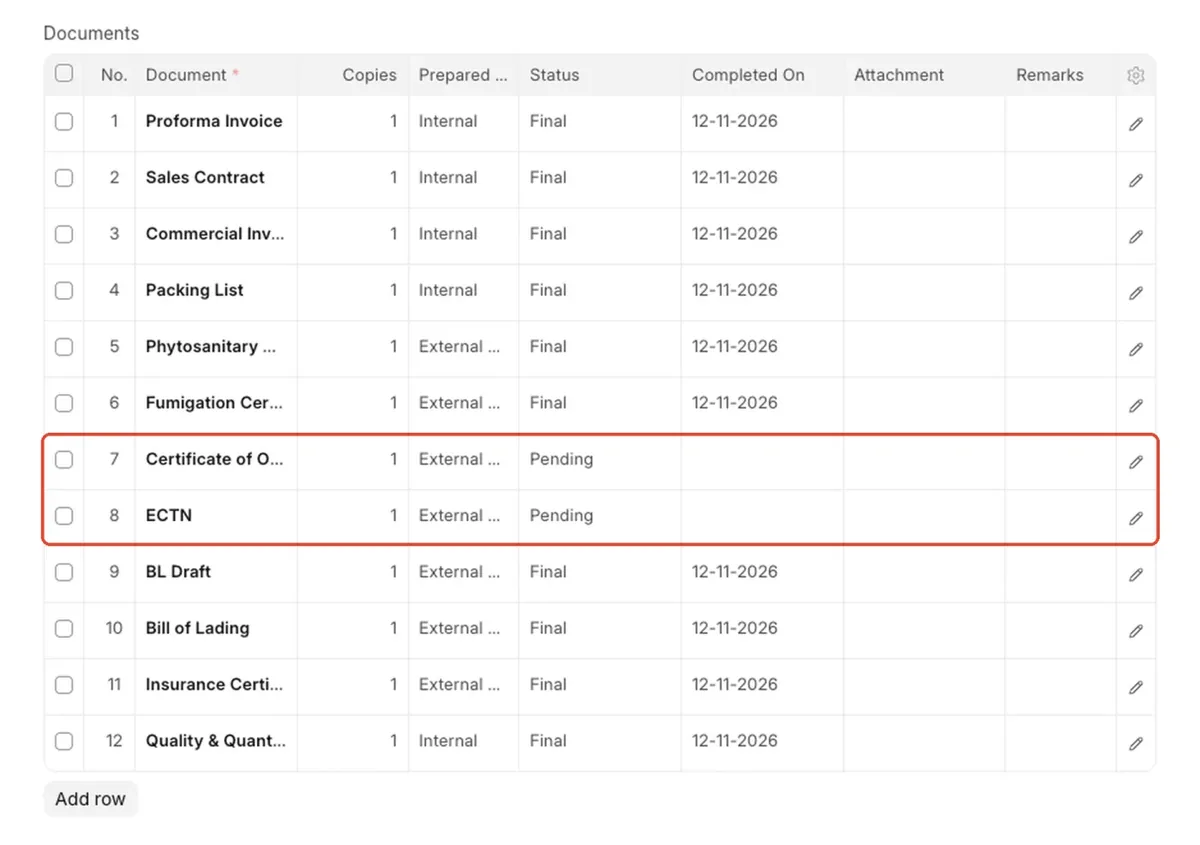
Look at the table Documents. Each row has Document, Copies, Prepared By (Internal or External Agency), Status and Completed On. The shipment has 12 documents. 10 are Final. Certificate of Origin and ECTN are Pending.
-
To open one document, click the pencil at the end of its row, then click the link in Lifecycle Document. Check Document Type, Prepared By and Copies Required. For an External Agency document, select the Agency and click Save before you pick an action. Without it, the system shows "Agency is required before moving … to …".
-
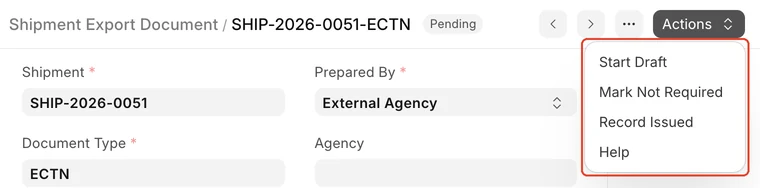
Click Actions at the top right and pick the action for the next step. The menu shows only the actions that fit the Status of the document.
-
Add the file before the document becomes Final. You cannot attach it after. For an Internal document, attach your draft in Our Draft. For an External Agency document, the action dialog asks for the file: Record Issued asks for Document Received from Agency and Agency Reference No, and Record Draft Received and Record Confirmation also ask for a file.
-
Repeat until every row is Final or Not Required. Then click Documents > Download Document Pack.
What each status allows
| Status | Actions in the menu |
|---|---|
| Pending | Start Draft, Mark Not Required. Record Issued also shows when Prepared By is External Agency. |
| Drafting | Mark as Final (Internal) or Send to Agency (External Agency). Send for Confirmation for both. |
| Sent to Agency | Record Draft Received, Request Amendment |
| Draft Received | Mark as Final, Send for Confirmation, Request Amendment |
| Sent for Confirmation | Record Confirmation, Request Amendment |
| Confirmed | Mark as Final |
| Amendment Requested | Re-send to Agency. Resume Drafting also shows for Internal documents. |
| Not Required | Reinstate |
| Final | Cancel |
The ECTN document on the Shipped shipment is Pending and External Agency, so its menu shows Start Draft, Mark Not Required and Record Issued. Mark as Final shows after Start Draft for an Internal document, and after Record Draft Received or Record Confirmation for an External Agency document.
Check it worked
- On the shipment, the line at the top shows "Documents: … final".
- Each row of the table Documents shows Final or Not Required.
- Documents > Download Document Pack downloads the pack. The pack has only the documents with a file. On the demo, no document has a file, so the system shows "The document pack has no files yet — generate or attach documents first."
Good to know
- The Declarations tab holds what the documents print. Customs has Nature of Cargo, Factory Stuffed, Sample Accompanied, Gateway Port and Export Contract Number. Valuation has Exchange Rate, FOB Value, Freight Value and Insurance Value. Cargo Treatment has Fumigation Type. Marine Cover has the policy number and date. Statutory References has the numbers that the destination country asks for, for example the ECTN number.
- Under Issued References on the Documents tab, Shipping Bill No, Shipping Bill Date and Sales Invoice show the numbers that other offices issue. On the Shipped shipment, the Shipping Bill is 9823451.
- Under the table, a summary lists each document with its status and file. The demo documents have no files, so the summary shows Missing for them.
- A Final document can only go back by Cancel. The system asks "Cancel …? A finalized document cannot be reopened — it must be redone." The row then shows Cancelled, and you make the document again.
- You can mark the shipment as shipped with documents that are not Final. The system asks first. See Mark as shipped.