
Raise the sales invoice
The rice is on the water. Priya hands the deal to accounts as a Sales Invoice.
At the end of this page, the shipment links a Sales Invoice for the deal.
Before you start
Finish Mark as shipped. Priya signs in as shown in Sign in and find your way.
The Sales Invoice item shows in the Create menu only when all of these are true:
- The exim apps are installed on the site.
- The costing of the shipment is Won and has a Sales Order.
- The shipment has no Sales Invoice yet.
The first picture shows the Ready to Ship shipment (SHIP-2026-0052), which has no invoice. The Shipped shipment (SHIP-2026-0051) already has one, so its Create menu has no Sales Invoice. Do not create a second invoice on the demo site.
Steps
-
In the search bar, type Export Shipment and open your shipment.
-
Click Create > Sales Invoice.

-
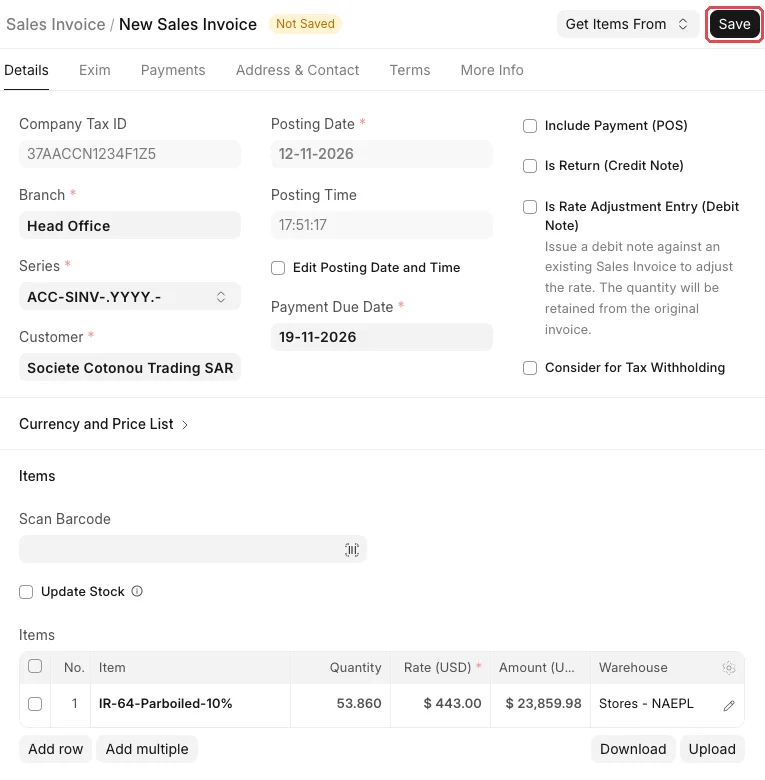
The system opens a new Sales Invoice made from the Sales Order of the costing. Check it and click Save.
Check it worked
-
Go back to the shipment and open the Documents tab.
-
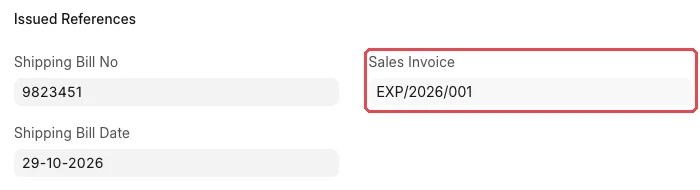
Under Issued References, Sales Invoice shows the number of the new invoice. On the Shipped shipment it is EXP/2026/001, a draft.
Good to know
- Sales Invoice under Issued References is read-only. The system fills it when the invoice is saved.
- Generate Documents on the Documents menu also makes the invoice when the shipment has none. Then Create > Sales Invoice is already gone.
- A shipment links one invoice. The system stops a second invoice and shows "Sales Invoice … is already linked to shipment …". If the first invoice is cancelled, you can make a new one.
- The invoice gets its own number series and carries the shipping, container and document-checklist fields of the exim apps.
- When the invoice is submitted, the shipping bill number and date of the invoice are copied to the shipment.