
Customers and notify parties
The customer is the buyer of the rice. A notify party is a person or a company that the shipping line tells when the vessel arrives. The bill of lading shows the consignee and the notify parties. The administrator adds each buyer, the buyer's billing address, and the notify parties that the buyers use again and again.
At the end of this page, your buyer's name and address fill the Consignee section of a new shipment.
Before you start
- Read Company and bank.
- You need the System Manager or Sales User role to add a customer or a notify party. The demo user Priya has these roles.
- The demo has one customer, Societe Cotonou Trading SARL, with one address in Cotonou, Benin. It is a billing address with Preferred Billing Address ticked. The demo has no shipping address. The demo has no notify party record: its shipments have the notify parties typed directly in the shipment.
Steps
See the demo customer
-
In the search bar, type Customer and open the list. Open Societe Cotonou Trading SARL.
-
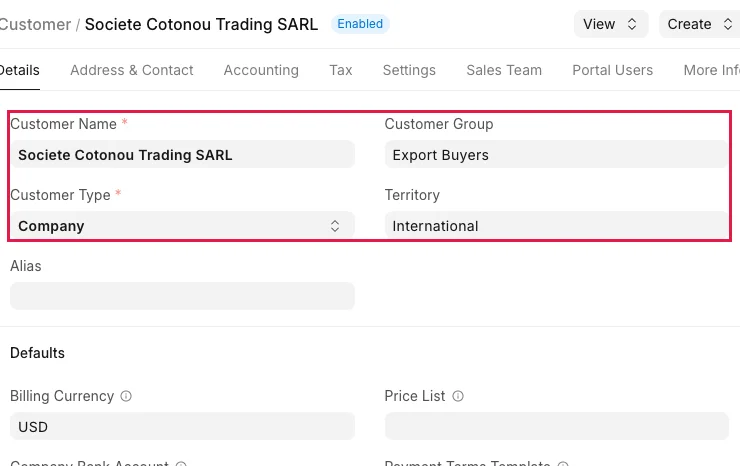
On the Details tab, look at the four fields that the export flow uses.
-
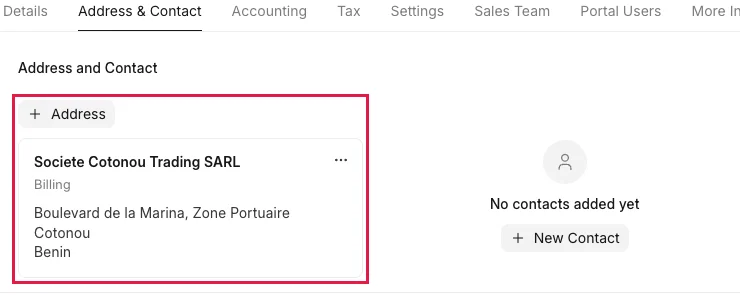
Click the Address & Contact tab. The address of the buyer shows under Address and Contact. In the demo it is the billing address.
Add your customer
-
Go back to the Customer list and click Add Customer.
-
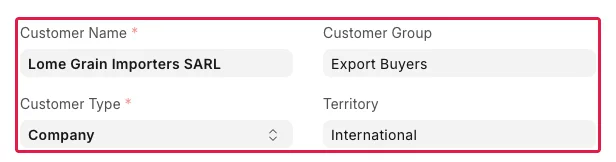
Fill in the fields. The picture shows an example buyer.
| Field | What to enter |
|---|---|
| Customer Name | The legal name of the buyer, as it must show on the bill of lading and the invoice. |
| Customer Type | Company for a buyer company. Individual for a person. |
| Customer Group | Export Buyers. |
| Territory | International. |
- Click Save.
- Click the Address & Contact tab and click + Address. Enter the street, the city and the country of the buyer. Set Address Type to Billing and tick Preferred Billing Address, then save the address. The system links the address to the customer. If the goods go to a different address, add a second address with Address Type Shipping and tick Preferred Shipping Address.
Add a notify party
-
In the search bar, type Notify Party and open the list. Click Add Notify Party.
-
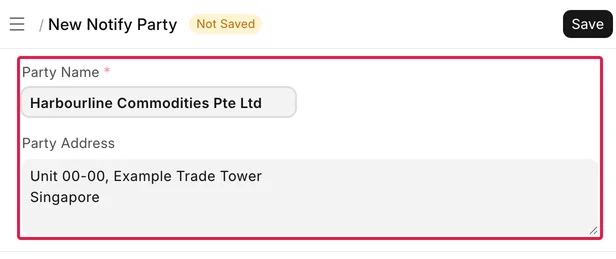
Type Party Name and Party Address. The picture uses the second notify party of the demo shipments.
| Field | What to enter |
|---|---|
| Party Name | The name of the person or company. It is also the name of the record. |
| Party Address | The full address, as it must show on the bill of lading. |
- Click Save.
Check it worked
- Open your new customer and click the Address & Contact tab. The card of the address you added shows under Address and Contact.
- In the search bar, type Notify Party and open the list. Your new notify party shows in the list.
To see how a shipment uses them, open a demo shipment. You do not need a new shipment.
-
In the search bar, type Export Shipment and open SHIP-2026-0055.
-
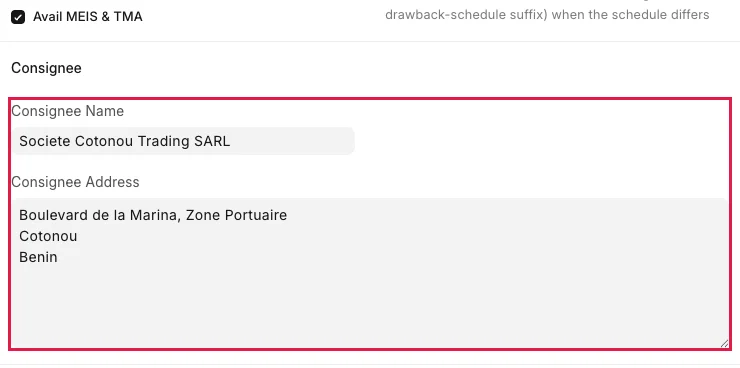
On the Deal tab, look at the Consignee section. Consignee Name and Consignee Address show the name and the address of the customer. The demo customer has only a billing address, so the system used it.
-
Under Notify Parties, the demo shipment has two rows. The Notify Party column is empty because the demo typed the names and addresses directly.
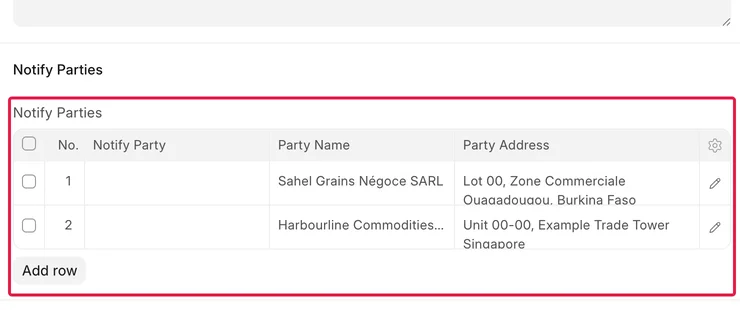
When Priya saves a shipment with your customer, the system fills Consignee Name from the customer, and Consignee Address from the customer's shipping address, or else from its other address (in the demo, the billing address). When she picks your notify party in a row of Notify Parties, the system copies its name and address into the row. See Complete the shipment details.
Good to know
- The system fills Consignee Name and Consignee Address only when they are empty. It never changes a consignee that Priya typed. If the goods go to a third party, Priya types that party before she saves.
- The consignee address comes from the customer's address with Preferred Shipping Address ticked. If no address has this tick, the system takes one of the other addresses of the customer. When a buyer has more than one address, tick Preferred Shipping Address on the address that must show on the bill of lading. Add the address before the first shipment for the buyer, or the address stays empty.
- A notify party record saves typing only. Priya can also type a name and an address directly in a row of Notify Parties, as the demo does.
- The customer also shows on the costing (Customer on the Deal tab). See Costing: deal and cargo.