
The administrator adds the shipping lines that carry the cargo. A shipping line has only a name and a website.
At the end of this page, your shipping line shows in the Shipping Line field of a costing, a costing template, a port lane rate and a shipment.
Before you start
- You need the System Manager role.
- The demo data has five shipping lines: CMA CGM, Hapag-Lloyd, Maersk, MSC and ONE. Open MSC to see a finished one. See Install and remove demo data.
Steps
See a finished shipping line
-
In the search bar, type Shipping Line and open the list.
-
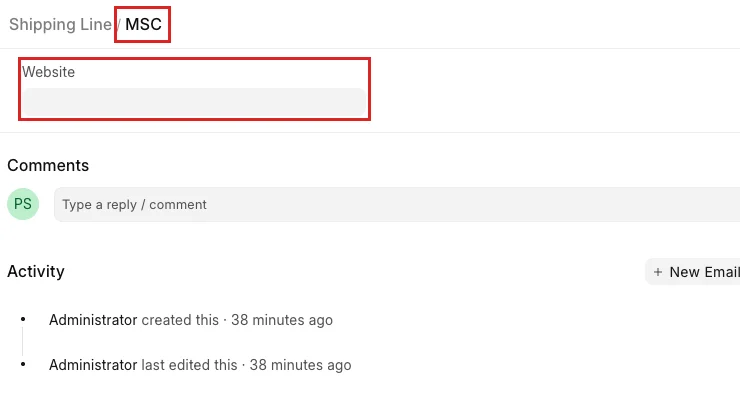
Click MSC. The name of the line shows at the top of the form. The form shows only the Website. The demo lines have no website.
Add your shipping line
-
On the list, click Add Shipping Line. If a small dialog opens, click Edit Full Form.
-
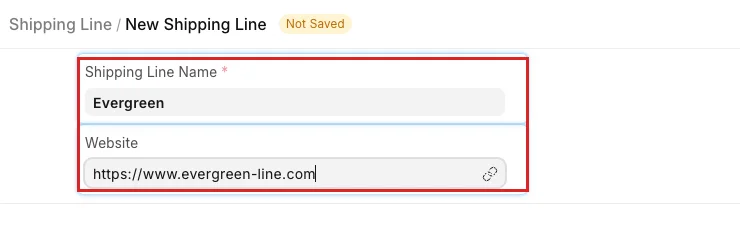
Type the Shipping Line Name, for example "Evergreen". The name is the name of the record. You cannot change it easily after Save.
-
Type the Website of the line, for example "https://www.evergreen-line.com". The website is optional.
-
Click Save.
Add the line as a supplier, if it bills you
The Shipping Line record does not hold money. If the line sends you invoices for freight, add it also as a Supplier, with the same name.
-
In the search bar, type Supplier and open the list. Click Add Supplier. If a small dialog opens, click Edit Full Form.
-
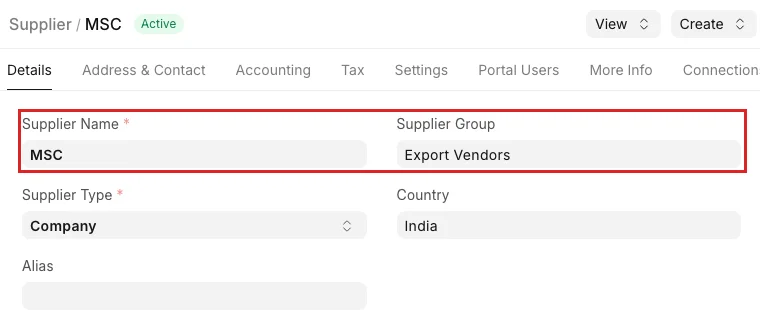
Type the Supplier Name, for example "Evergreen". In Supplier Group, select Export Vendors.
-
Click Save.
In the demo, the supplier MSC is in the group Export Vendors, the same as the mills and the other service companies.
Check it worked
- Open a new costing. Do not save it. In Shipping Line, type the first letters of your line. Your line shows in the list. See Costing: deal and cargo.
- In the search bar, type Port Lane Rate and open it. Click Add Port Lane Rate. In Shipping Line, type the first letters of your line, and in Quoted By the first letters of the supplier. Both show in the list. Do not save. See Port lane rates (ocean freight).
Good to know
- The Shipping Line field of a costing is optional. Fill it only when the buyer wants one line. The system then picks the costing template for that line, if one exists. See Costing templates.
- On a port lane rate, keep Shipping Line empty when the rate is good for every line on that route.
- The shipping line and the supplier are two records. The system does not link them. Use the same name for both, so that each person finds the line easily.
- In the demo, there are two port lane rates from Nhava Sheva to Lome: one for MSC and one for Maersk.