
Rice items and variants
The rice that the exporter sells is set up as one item template with variants. The template is the rice, for example IR-64. Each variant is one grade of it, for example IR-64-Parboiled-10%: parboiled rice with 10% broken grains. The administrator sets the template once, and then makes one variant for each grade.
At the end of this page, your rice grade shows in the Item filter of the Cheapest Port Board.
flowchart TD
    A["Item template IR-64<br>(Has Variants)"] --> B["Variant IR-64-Parboiled-10%"]
    A --> C["Other grades, for example<br>Raw 5%"]
    B --> D["Rate template and<br>Cheapest Port Board"]
Before you start
- You need the Item Manager role to add or change an item. The Administrator user has all roles.
- These records must exist:
- The units Kg, 50 KG and MT. See Currencies, exchange rates and units.
- The HS code 10063010. See Customs tariff (HS) numbers.
- The item attributes Processing (values Raw and Parboiled) and Broken (values 5%, 10% and 25%). In the search bar, type Item Attribute and open the list. Open the attribute, or click Add Item Attribute, and add its values in the table.
- The heap inspection template. See Contract and heap inspection templates.
- The demo data has the template IR-64 and the variant IR-64-Parboiled-10%. Open them to see finished ones. See Install and remove demo data.
Steps
See the demo template
-
In the search bar, type Item and open the list. Open IR-64. The title shows the item code IR-64 and the tag Template.
-
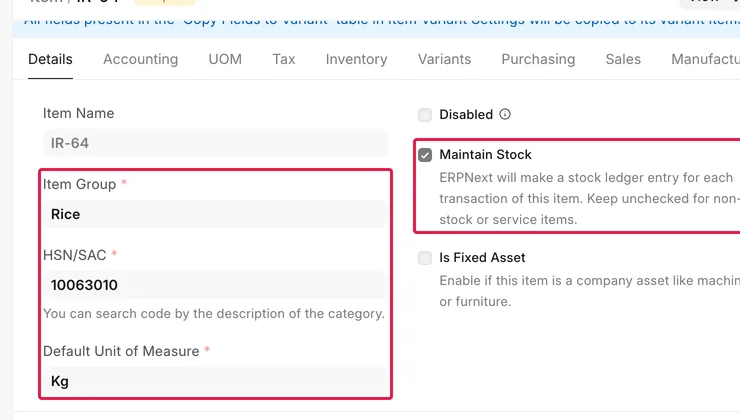
On the Details tab, see the main fields:
- Item Group: Rice.
- HSN/SAC: 10063010, the code for GST.
- Default Unit of Measure: Kg. This is the stock unit.
- Maintain Stock: ticked.
Set Maintain Stock, the packs (UOMs), the HS code and the Heap Inspection Template on the template. When you save it, the system copies them to every variant. Change them on the template, not on one variant.
-
Lower on the Details tab, in Item Attributes, Has Variants is ticked.
-
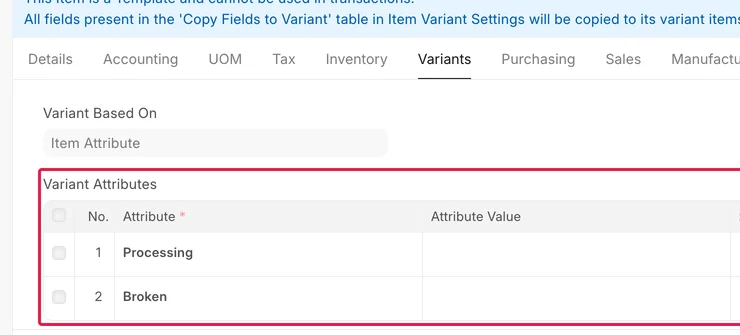
Open the Variants tab. The Variant Attributes table has two rows: Processing and Broken. Each variant takes one value of each attribute, for example Parboiled and 10%.
-
Open the Purchasing tab and click Foreign Trade Details. Customs Tariff Number is 10063010. See Customs tariff (HS) numbers.
-
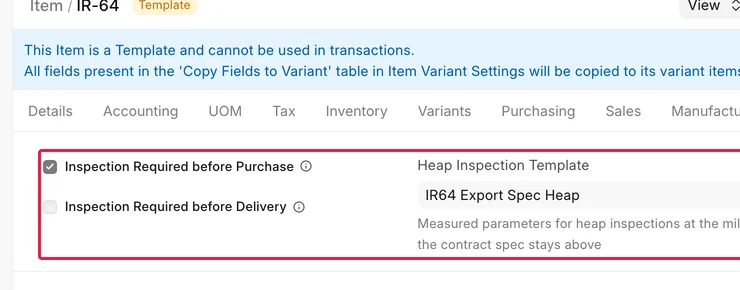
Open the Quality tab:
- Inspection Required before Purchase: ticked. The system asks for a quality inspection when the rice comes in from the mill.
- Heap Inspection Template: IR64 Export Spec Heap. The inspector uses it to check the heap of rice at the mill.
See the demo variant
-
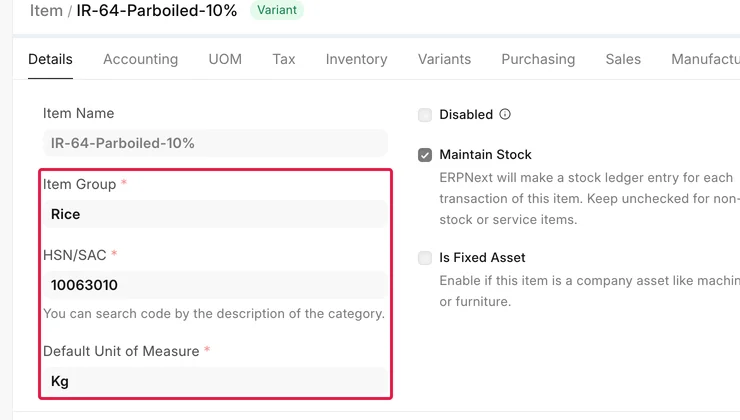
Go back to the list and open IR-64-Parboiled-10%. The blue bar at the top says that it is a variant of IR-64. Item Group, HSN/SAC and Default Unit of Measure are the same as on the template.
-
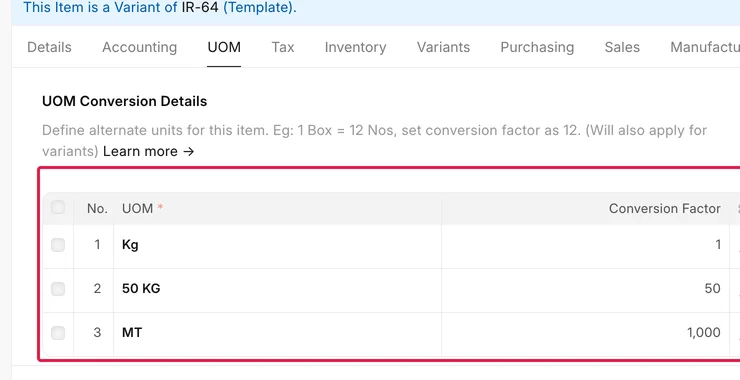
Open the UOM tab. The UOM Conversion Details table gives the weight of each pack in kg: 50 KG is 50, and MT is 1,000. The variant has the same packs as the template, because the system copies them from the template.
Make your template
-
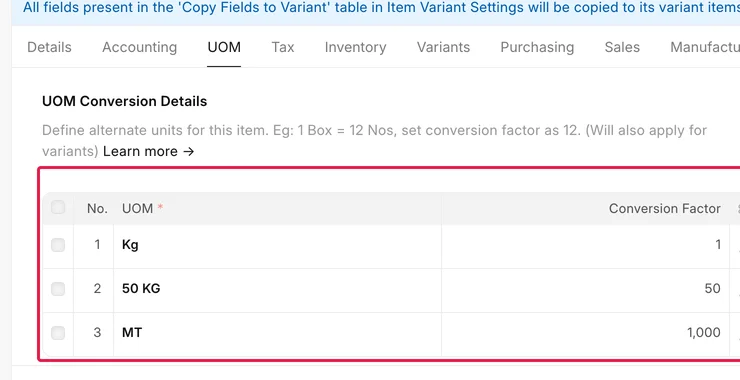
In the item list, click Add Item. Fill the fields of steps 1 to 6 for your rice: Item Code, Item Group Rice, HSN/SAC, Default Unit of Measure Kg, Has Variants with the attributes, Customs Tariff Number, and the fields of the Quality tab. Add the packs, for example 50 KG = 50, in the UOM tab. The demo template has Kg, 50 KG and MT.
-
Click Save.
Make a variant
-
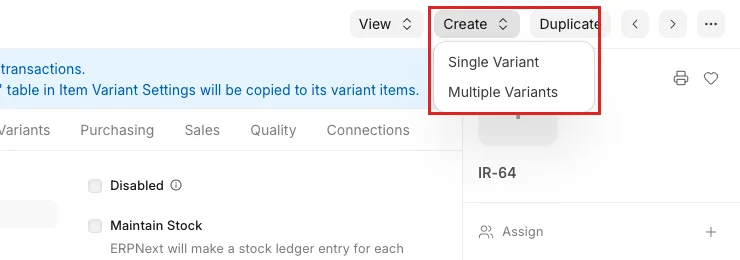
Open the template. Click Create, then Single Variant.
-
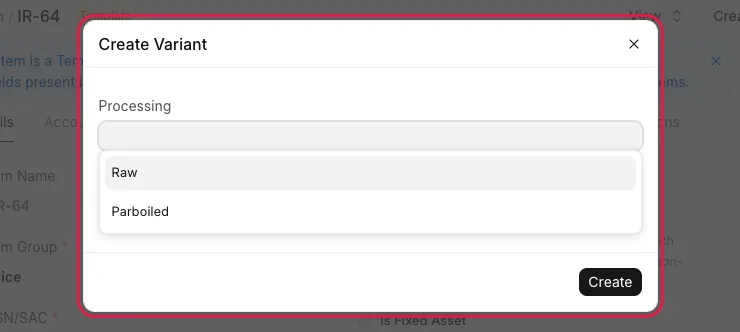
The Create Variant dialog opens. Select one value for each attribute, for example Processing Parboiled and Broken 10%.
-
Click Create. The system makes the variant and names it from the template and the values, for example IR-64-Parboiled-10%. It copies the fields of the template to the variant.
See which fields go to the variants
-
In the search bar, type Item Variant Settings and open it. The Fields table in Copy Fields to Variant lists the fields that the system copies from the template to the variants. The table shows the system names of the fields, for example gst_hsn_code for HSN/SAC. Do not change this list.
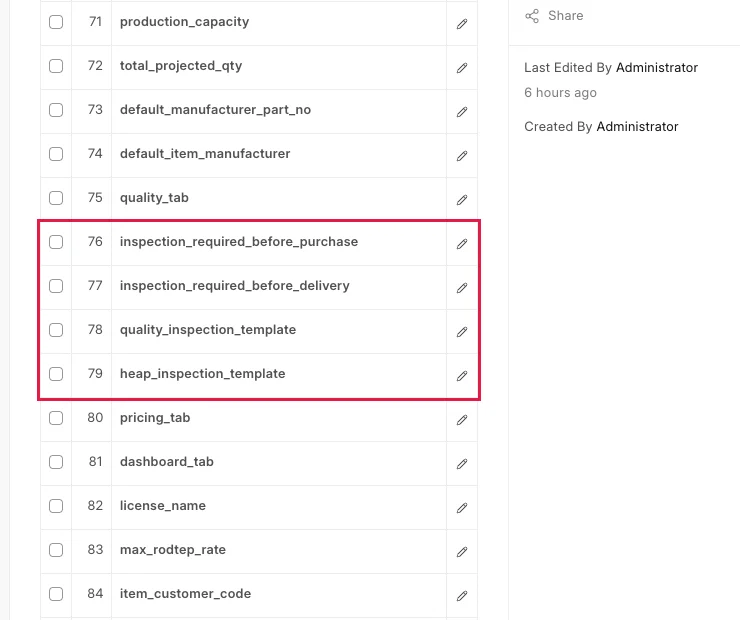
The list includes heap_inspection_template, inspection_required_before_purchase, customs_tariff_number, gst_hsn_code, is_stock_item (Maintain Stock) and uoms. When you save the template, the system copies these fields to every variant.
Check it worked
- A mill adds your grade to its rate template and sends a rate. See Add a rice mill.
- Open the Cheapest Port Board. Your grade shows in the Item filter. See Read the Cheapest Port Board.
Good to know
- Set the fields on the template, not on each variant. Set the Heap Inspection Template on the template too: when you save the template, every variant gets it.
- Warning: when you save a template, the system overwrites these fields on all its variants: Maintain Stock, the table of units, the HS code and the Heap Inspection Template. A change that you make on one variant is lost at the next save of the template.
- A rate template is for the template item, for example IR-64. Its Grade rows give each variant. See Charge types.
- The Item filter of the Cheapest Port Board shows only the grades that have a rate today.