
Make the order and the shipment
When the buyer says yes, Priya makes the Sales Order and the Export Shipment from the costing, in one step. The system also makes the Purchase Orders: the rice from the mill and the bags from the bag supplier.
At the end of this page, the costing is Won and you can open its Sales Order, its shipment and its purchase orders.
Before you start
- Finish Send the quotation and proforma invoice. The costing status is Costing Selected or Quoted.
- You need the Sales User role to make sales orders. Ask your administrator.
- In the demo, the story costing (JMC-PI-2627-017) is already Won. To see the dialog, open the Quoted costing from Visakhapatnam (JMC-PI-2627-015) and close the dialog without clicking Create.
Steps
-
Open the costing.
-
Click Create > Sales Order & Shipment.
-
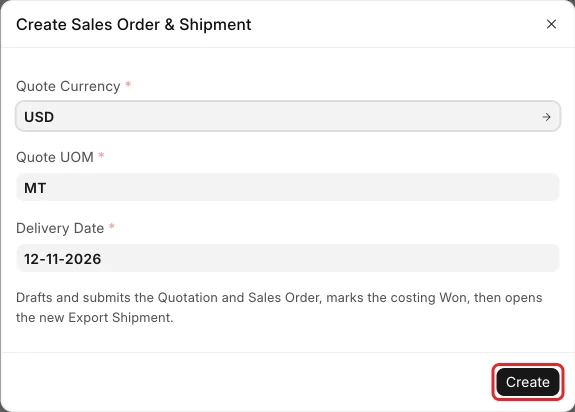
In the Create Sales Order & Shipment dialog, check the Quote Currency and the Quote UOM. Type the Delivery Date: the date the buyer expects the rice. It starts as the Expected Shipment Date of the costing, or today.
-
Click Create. The system does these steps:
- If the quotation is already submitted, it uses it. If not, it makes a new quotation at the current price and submits it.
- It makes the Sales Order from the quotation and submits it.
- It changes the costing status to Won.
- It makes the Export Shipment and opens it.
- It makes one draft Purchase Order for each supplier of the shipment.
The message "Quotation … and Sales Order … submitted" shows.
Check it worked
-
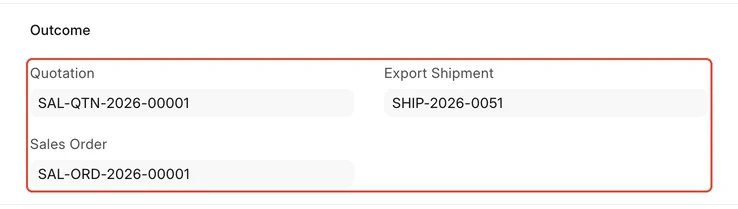
Click the browser's Back button to go back to the costing. The status is Won. On the Deal tab, the Outcome section shows the Quotation, the Sales Order and the Export Shipment.
-
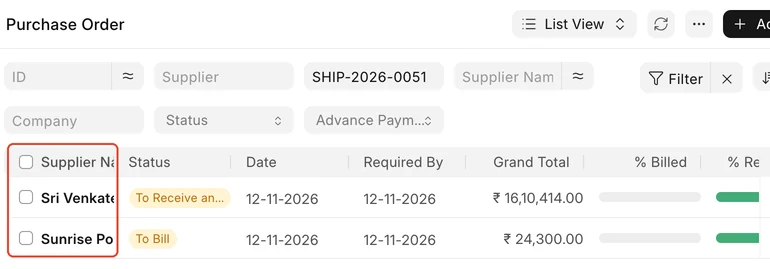
Click Search at the top of the left sidebar, type Purchase Order and open the list. In the filter bar, type the shipment number in the Export Shipment filter. The list shows two purchase orders: the rice from the mill and the bags from the bag supplier. In the demo, for the Shipped shipment (SHIP-2026-0051), they are for Sri Venkateswara Rice Mill and Sunrise Polymers.
Good to know
- All steps run together. If one step fails, the system makes nothing, and shows the reason.
- If the system cannot make the purchase orders, it still makes the shipment and shows the message "Purchase Orders skipped" with the reason. Make the purchase orders from the shipment with Create > Purchase Orders. See Complete the shipment details.
- The demo purchase orders are submitted, because the story shipment is further on. Your new purchase orders are drafts. You submit them when you run the shipment.
- A Won costing that has no shipment shows Create > Export Shipment. A submitted Sales Order that came from a Won costing without a shipment also shows Create > Export Shipment.
- Create > Purchase Orders on a Won costing makes purchase orders from the supplier quotations of the selected combination. Use it only when your rates came from supplier quotations.