
See your assigned work
Meena sends each surveyor to the mill on the correct days. Each container inspection and each heap is assigned to one surveyor. Ravi sees only the work that is assigned to Ravi. Meena sees the work of all surveyors.
At the end of this page, you can find the containers and the heaps that are assigned to you.
Before you start
- Finish Sign in on your phone.
- The agency manager picks the surveyor for each day, and the export coordinator assigns the containers. See Assign the day.
Steps
The lists read better on a wide screen, so the pictures on this page are from a computer. The steps are the same on a phone. On a computer, the left sidebar is always open, so you do not tap the menu icon.
-
Open the My Inspections workspace.
-
Tap Containers. The Container Inspection list opens. It shows only the containers with a Planned Date from today to two days from now.
-
To see all your containers, tap the x next to Filters at the top right of the list. The list shows every container inspection that you can see.
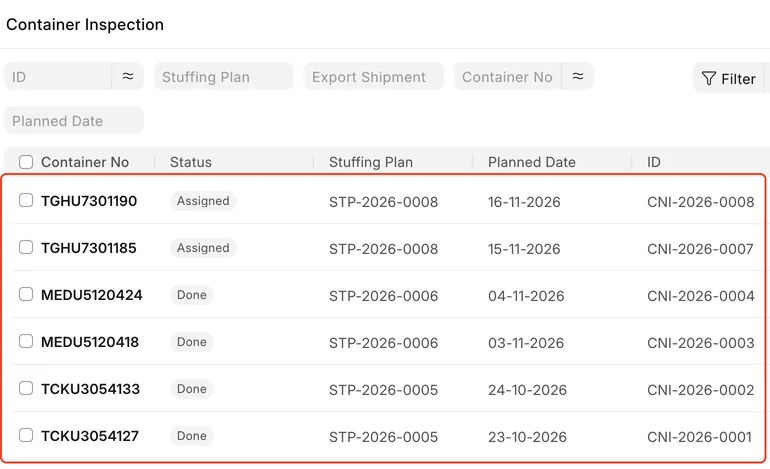
Read the columns of the list:
| Column | What it shows |
|---|---|
| Container No | The number of the container. |
| Status | The step of the inspection, for example Planned, Assigned, Loading, Loaded & Sealed or Done. |
| Stuffing Plan | The plan of the shipment that the container is for. Only the agency manager can open it. |
| Planned Date | The day of the inspection at the mill. |
| ID | The number of the container inspection. |
The initials at the right of a row show the surveyor that the inspection is assigned to, for example RK for Ravi Kumar.
-
Tap a row to open the container inspection.
-
Tap the menu icon at the top left, tap My Inspections, then tap Heap Inspections. The list shows the heaps that are assigned to you.
-
Tap the menu icon at the top left, then tap Notification in the left sidebar. The list shows a message for each container inspection and each heap that is assigned to you.
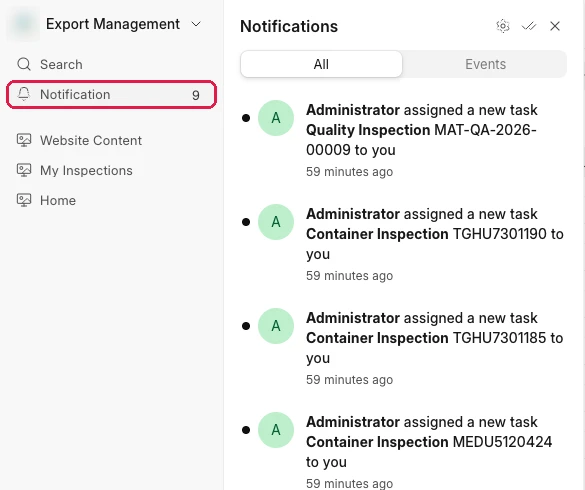
On the demo, the messages say that Administrator assigned the work, because the demo data made the assignments.
Check it worked
As Ravi, the Container Inspection list shows 6 of 6: the two Assigned containers of the Inspecting shipment (SHIP-2026-0054), and the four Done containers of the Shipped and Ready to Ship shipments.
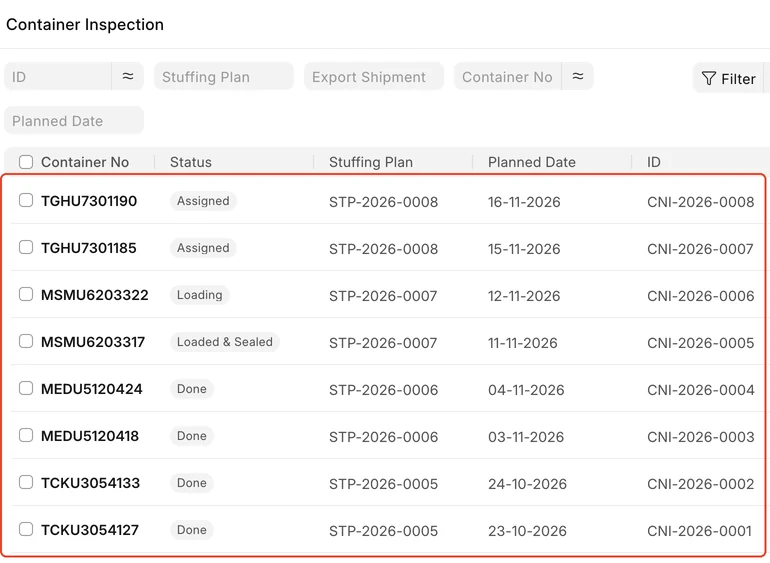
Meena signs in and does the same steps. Her list shows 8 of 8. It also shows the two containers of Kiran (initials KD) for the Loading shipment.
Good to know
- The Planned Date filter on Containers moves with the day. If the list is empty, you have no container inspections in the next three days. Remove the filter to see the later ones.
- New work shows in Notification inside the system. Do not wait for an email. Open My Inspections at the start of each day.
- A surveyor cannot see the work of other surveyors, and cannot open the stuffing plans. The agency manager can open every stuffing plan.