
Check a route before use
Before Priya quotes a buyer on a new route, the administrator checks that the route has all its charges. The report Route Cost Preview shows, in one table, each charge that a costing for the route gets: the loading template, the port lane rate and the discharge template.
At the end of this page, you can see that each stage of the route has a charge line, or you know which part is missing.
Before you start
- You need the System Manager or the Purchase Manager role. The demo user Priya has both.
- The parts of the route must exist: Costing templates and Port lane rates (ocean freight).
- The demo route Visakhapatnam to Cotonou, 20' FCL, has all its parts. The demo route Nhava Sheva to Lome has no discharge template. See Install and remove demo data.
Steps
Open the report
-
In the search bar, type Route Cost Preview and open the report.
-
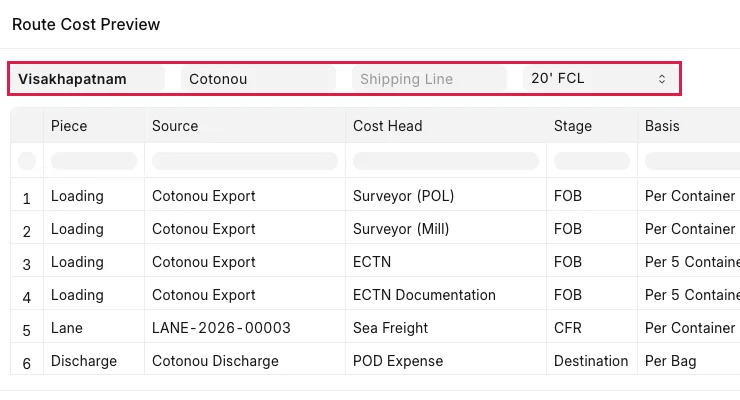
Set the filters:
- Port of Loading: Visakhapatnam. This filter is necessary.
- Port of Discharge: Cotonou.
- Shipping Line: leave it empty to use the rate that is good for every line, or select a line.
- Container Type: 20' FCL.
Read the charge lines
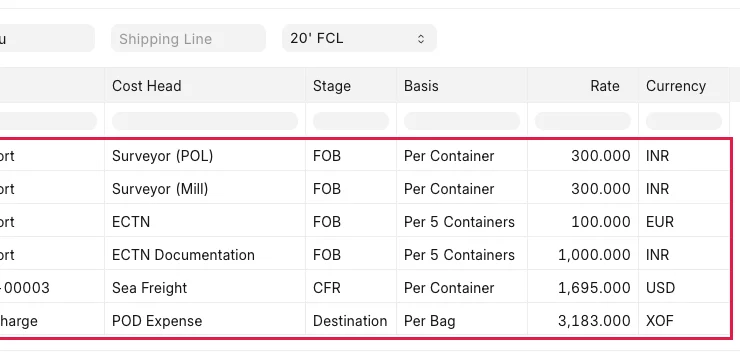
- The report shows one row for each charge. The columns are:
| Column | What it shows |
|---|---|
| Piece | The part of the route: Loading, Lane or Discharge. |
| Source | The record that has the charge: the costing template or the port lane rate. Click it to open the record. |
| Cost Head | The charge. |
| Stage | The point in the price where the charge is added, for example FOB, CFR or Destination. |
| Basis | How the charge is calculated, for example Per Container or Per Bag. |
| Rate | The amount, in the currency of the next column. |
| Currency | The currency of the rate. |
-
For Visakhapatnam to Cotonou, 20' FCL, the report shows six rows:
- Loading, from Cotonou Export: Surveyor (POL), Surveyor (Mill), ECTN and ECTN Documentation, all with the stage FOB.
- Lane, from the port lane rate LANE-2026-00003: Sea Freight, CFR, Per Container, 1,695 USD.
- Discharge, from Cotonou Discharge: POD Expense, Destination, Per Bag, 3,183 XOF.
Check it worked
-
Each stage of the route has at least one row: FOB from the loading template, CFR or CIF from the port lane rate and Destination from the discharge template.
-
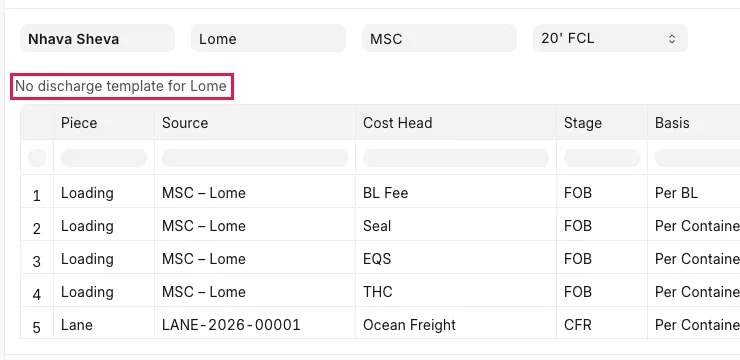
If a part is missing, the report shows a message above the table, one line for each missing part. For example, Kakinada to Lome, 20' FCL shows "No 20' FCL route from Kakinada to Lome" and "No discharge template for Lome".
-
To see one message, change the filters to Nhava Sheva, Lome, MSC and 20' FCL. The report shows the rows of the loading template MSC – Lome and the port lane rate, and the message "No discharge template for Lome".
The messages that you can see are:
| Message | What to do |
|---|---|
| No loading template for {port} | Add a loading template for the port of loading. See Costing templates. |
| No {container type} route from {port} to {port}, plus " for {shipping line}" when a Shipping Line is set | Add a port lane rate for the route and container type. See Port lane rates (ocean freight). |
| No discharge template for {port} | Add a discharge template for the port of discharge. See Costing templates. |
Good to know
- The report only reads the setup. It does not make or change a costing.
- The report uses the same parts as a new costing on the same date. So a route with no message, with all four filters set, gives a costing with no missing charge.
- The report shows the rates in their own currencies. It does not add them up. To see the parts of the route in cards, open the Complete Cost window on the route map. See Build routes on the map.
- Select a Container Type. The port lane rate is for one container size, so without it the report shows no Lane row and no message about the freight.