
Sign in on your phone
Ravi Kumar is a surveyor at the inspection agency. Meena Reddy is the agency manager. They work at the mill and at the port, so they use the system on a phone.
At the end of this page, you can sign in on your phone and open the My Inspections workspace.
Before you start
- Get your user from the administrator of Navchetan Agro Exports. You need your email address and your password. A surveyor has the ASI Surveyor role. The agency manager has the ASI Manager role. See Users and roles.
- Use the browser on your phone. The pictures on this page are from a phone. On a computer, the steps are the same.
Steps
-
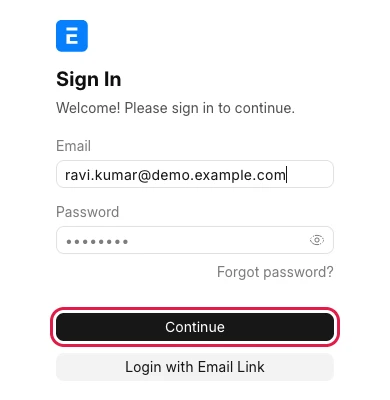
In the browser of your phone, open the address of the site. The Sign In page opens.
-
Enter your Email and your Password.
-
Tap Continue.
The Desk opens. It shows one icon for each app.
-
Tap Export Management. The Export Management workspace opens.
-
Tap the menu icon at the top left. The left sidebar opens.
-
Tap My Inspections.
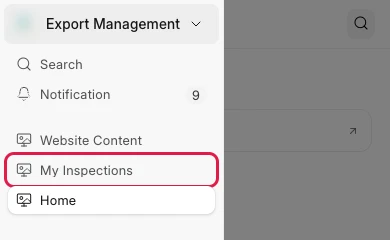
The My Inspections workspace opens. It shows two shortcuts.
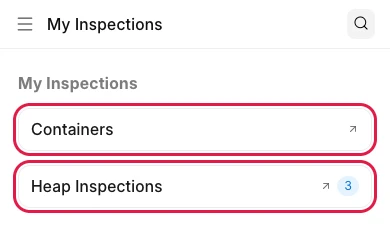
| Shortcut | What it opens |
|---|---|
| Containers | The Container Inspection list, filtered to the containers with a Planned Date from today to two days from now. When there are containers in these days, the shortcut shows their number, for example 1 next 3 days. |
| Heap Inspections | The Quality Inspection list of the heaps. The number shows how many heaps you can see. |
Check it worked
The My Inspections workspace shows the Containers and Heap Inspections shortcuts. On the demo, the Heap Inspections shortcut shows 3 for Ravi and 5 for Meena.
Good to know
- Save the My Inspections page as a bookmark on your phone. Then you open your work in one tap.
- On the demo site, the first field of the Sign In page reads Email, so you type your email address. The administrator can let surveyors sign in with a mobile number. See Ravi's quick start.
- Forgot your password? Tap Forgot password? on the Sign In page.