
The vessel sails from the port. The shipping line sends the bill of lading.
At the end of this page, the shipment is Shipped and the system has a Delivery Note for the rice.
Before you start
Finish Load and seal for both containers, Watch progress and warnings and Prepare the export documents. Priya signs in as shown in Sign in and find your way.
The pictures on this page show the Ready to Ship shipment (SHIP-2026-0052) before the click, and the Shipped shipment (SHIP-2026-0051) after it. Do not click Mark as Shipped on the demo shipment. Its dates and bill of lading are not filled.
Steps
-
In the search bar, type Export Shipment and open the Ready to Ship shipment. The status next to the title is Ready to Ship. The blue line at the top shows "Status: Ready to Ship · Documents: 0/12 final · Readiness: Ready". The Documents number counts the documents that are Final. Priya can ship with fewer.
-
Open the Logistics tab and fill the shipping details:
- Under Schedule, Actual Time of Departure: the day the vessel sails.
- Under Bill of Lading, BL No: the number on the bill of lading.
- Under Bill of Lading, BL Date: the date on the bill of lading.
-
Click Mark as Shipped at the top right. The button saves the form first.

-
If some documents are not Final or Not Required, the system shows "These documents are not Final yet:" with the list, and "Ship anyway?". Read the list.
-
Click Yes to ship, or No to finish the documents first.
-
The system opens the new Delivery Note.
Check it worked
-
The shipment status is Shipped.
-
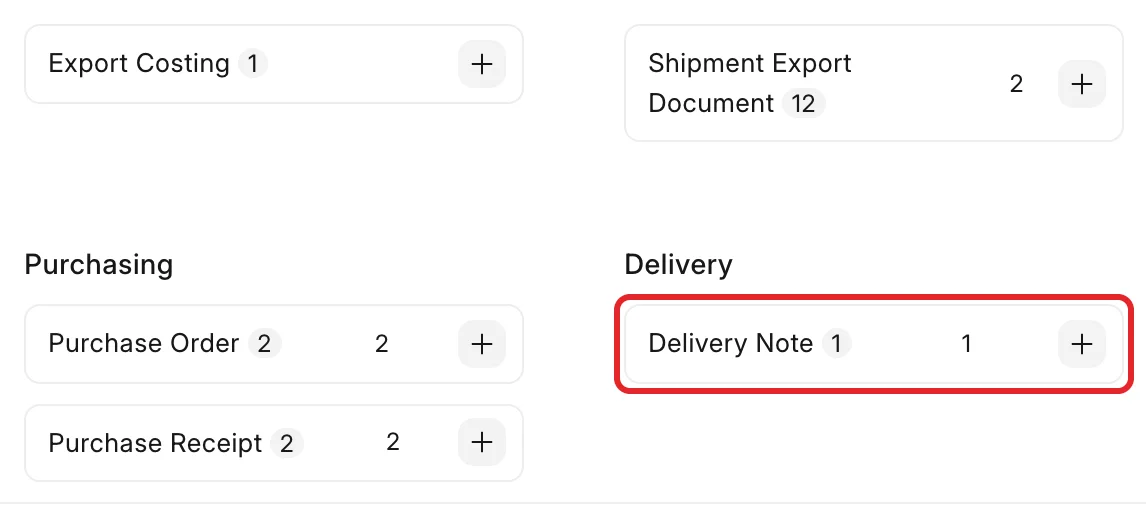
On the shipment, in the Documents tab, under Delivery, the Delivery Note card shows 1. Click it to see the Delivery Note (DN-26-00001 on the Shipped shipment).
-
The Delivery Note has 53.83 MT of rice from the warehouse in Export Settings > Receiving Warehouse.
Good to know
The Delivery Note quantity is the sum of Net Wt (Kg) of all containers. The system submits the Delivery Note and links it in Delivery Note on the Logistics tab, under Bill of Lading.
| Message | What to do |
|---|---|
| Fill Actual Time of Departure, BL No, BL Date before marking the shipment as shipped. | Fill the three fields. |
| Export Shipment … is …; only a Ready to Ship shipment can be shipped. | Finish every container inspection to Done. |
| Export Shipment … has no weighed net weight on its containers. | Seal the containers. |
| Export Shipment … needs a submitted Sales Order to make the Delivery Note. | Ask the person who owns the costing to submit the Sales Order. |