
Port lane rates (ocean freight)
A port lane rate is the ocean freight for one container from one port of loading to one port of discharge, for example Visakhapatnam to Cotonou. The administrator records the freight that a shipping line or a forwarder quotes, and the dates that the rate is good for.
At the end of this page, your freight shows on the route map and in each costing for that route.
Before you start
- You need the System Manager or the Purchase Manager role. Priya has both. A Purchase User can only view the rates.
- The two ports must exist. See Ports and their map pins.
- If the rate is for one line only, the shipping line must exist. See Shipping lines.
- The freight charges must exist as cost heads with the Default Stage CFR or CIF. See Cost heads.
- The demo data has four port lane rates. See Install and remove demo data:
| Port of Loading | Port of Discharge | Container Type | Shipping Line | Charges |
|---|---|---|---|---|
| Visakhapatnam | Cotonou | 20' FCL | (empty) | Sea Freight, USD 1,695 per container |
| Kakinada | Cotonou | 20' FCL | (empty) | Sea Freight, USD 2,000 per container |
| Nhava Sheva | Lome | 20' FCL | MSC | Ocean Freight, USD 1,675 per container |
| Nhava Sheva | Lome | 20' FCL | Maersk | Ocean Freight, USD 1,650 and EBS, USD 200 per container |
Steps
See a finished port lane rate
-
In the search bar, type Port Lane Rate and open the list. Each row shows the Port of Loading, the Port of Discharge, the Container Type and the Valid From date.
-
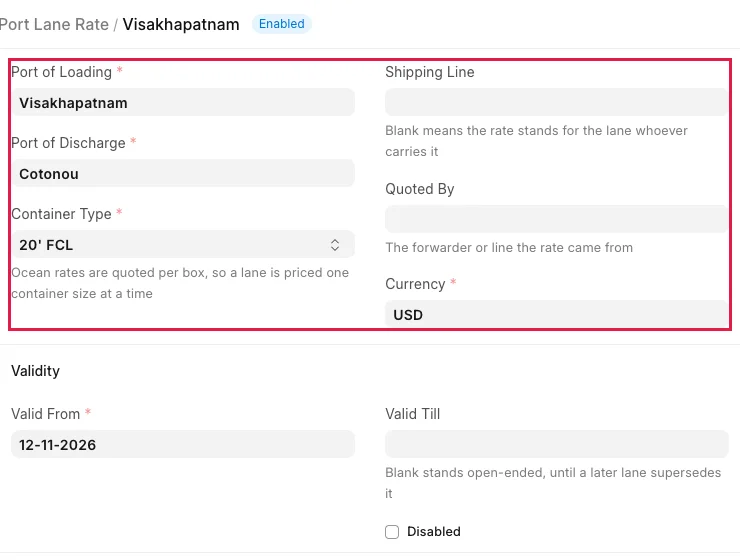
Click the row Visakhapatnam (to Cotonou). The top of the form shows the route and who quotes it:
- Port of Loading: Visakhapatnam.
- Port of Discharge: Cotonou.
- Container Type: 20' FCL. A line quotes per container, so one port lane rate is for one container size.
- Shipping Line: empty. An empty Shipping Line means that the rate is good for every line.
- Quoted By: the forwarder or the line that gave you the rate. It is empty in the demo.
- Currency: USD.
-
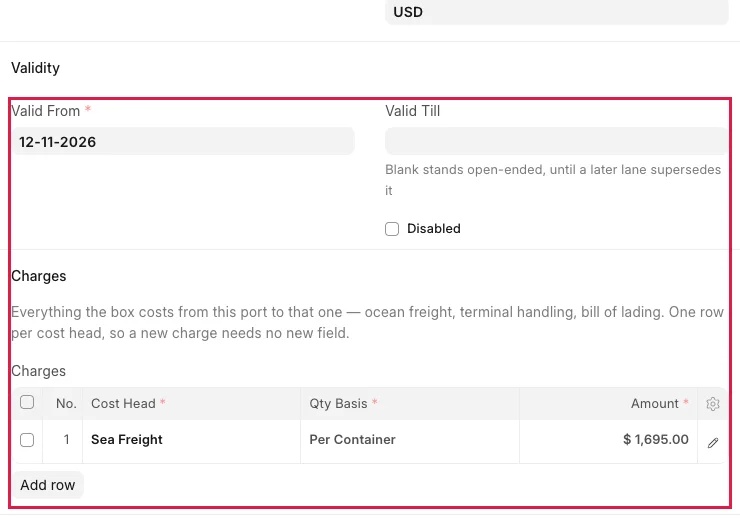
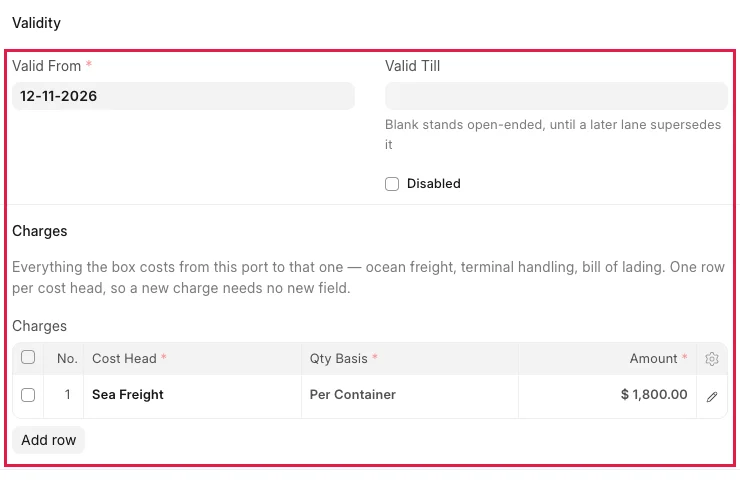
Look at the sections Validity and Charges:
- Valid From: the first day of the rate.
- Valid Till: the last day of the rate. Empty means that the rate has no end date.
- Disabled: tick it to stop using the rate.
- Charges: one row for each cost head. The demo row is Sea Freight, Per Container, $ 1,695.00.
-
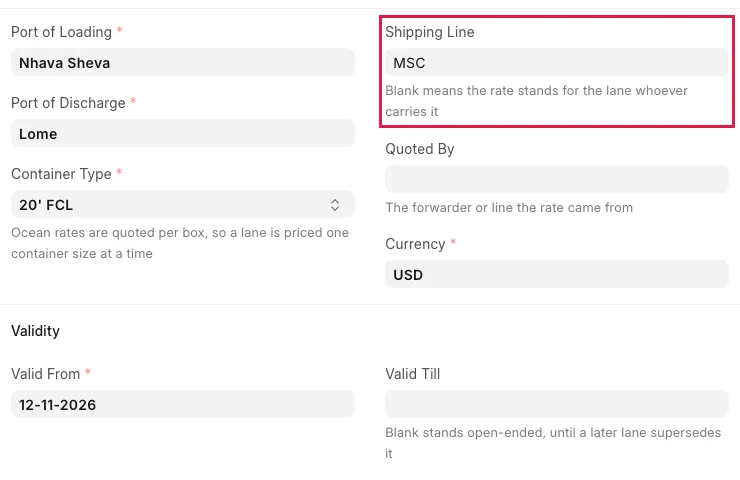
Go back to the list. Two rows show Nhava Sheva to Lome. Open each one: one has the Shipping Line MSC, the other Maersk. Each line has its own rate for the same route.
Add your port lane rate
-
On the list, click Add Port Lane Rate.
-
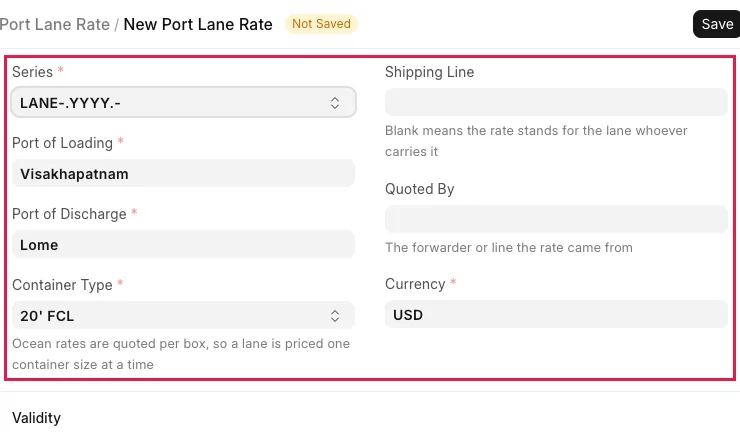
Keep the Series as it is. Select the Port of Loading and the Port of Discharge, for example Visakhapatnam and Lome.
-
Container Type starts as 20' FCL. Change it if the rate is for a 40' FCL or a 40' HC.
-
Select the Shipping Line if the rate is from one line only. Leave it empty if the rate is good for every line. Select the Quoted By supplier if you want to keep who gave you the rate.
-
Currency starts as USD. Change it if the line quotes in a different currency.
-
Type the Valid From date. Type the Valid Till date if the quote has an end date.
-
In Charges, click Add row for each charge. Select the Cost Head, for example Sea Freight. Pick the Qty Basis, usually the cost head's Default Qty Basis, for example Per Container. Type the Amount in the currency of the rate.
-
Click Save.
Check it worked
- Open the route map: type Export Costing Template in the search bar. Click the cell of your route in the From × To grid. The side panel shows your charges under Freight. See Build routes on the map.
- Make a costing for the same ports and container type. The Charges table of the costing has a row for each charge of the port lane rate, with the stage CFR. In the demo, a costing for Visakhapatnam to Cotonou, 20' FCL, has the row Sea Freight, $ 1,695.00. See The costing: Rates & Charges tab.
- To see all the charges of the route in one table, use the report Route Cost Preview. See Check a route before use.
Good to know
- A port lane rate takes only cost heads with the Default Stage CFR or CIF. If a row has a cost head with another stage, for example FOB, Save stops with the message "A lane carries only CFR / CIF charges — put it on the loading port's Costing Template." The charges at the port of loading go on a loading template. See Costing templates.
- Only one rate can be valid on a day for the same ports, container type and shipping line. To change a rate, type a Valid Till date on the old rate, then add a new rate that starts the next day. If the dates overlap with another rate for the same ports, container type and shipping line, Save stops with the message "{rate} already prices {port} to {port} ({container type}) over these dates."
- A rate with an empty Shipping Line and a rate for one line are two different rates. A costing for MSC uses the MSC rate first. If there is no MSC rate, it uses the rate with the empty Shipping Line.
- The Cheapest Port Board adds the sea freight to a port of discharge only from the port lane rates. A port with no port lane rate to that port of discharge still shows on the board, but it has no CFR price and it goes to the end of the list. See Read the Cheapest Port Board.
- A rate with no Valid Till date that is older than 60 days shows on the route map as "Re-quote rates older than 60 days".