
Inspect the empty container
The truck brings the first empty container to the mill. Ravi checks it before any bag goes in.
At the end of this page, the container inspection is in the Empty Passed step.
Before you start
Finish Assign the day. Ravi signs in as shown in Ravi's quick start. The container inspection is in the Assigned step. The pictures on this page show the first container inspection of the Inspecting shipment (CNI-2026-0007, container TGHU7301185). Ravi opens it from his own My Inspections workspace.
Steps
-
In the My Inspections workspace, click Containers. The list shows the container inspections with a Planned Date from today to 2 days ahead. To see a later one, remove the Planned Date filter.
-
The container inspection of the Inspecting shipment is more than 2 days ahead. Remove the Planned Date filter, then open the container inspection with Planned Date 15-11-2026.
-
Check Container No. It shows the number from the stuffing plan, TGHU7301185. Compare it with the number on the container. If the number on the container is different, type the right number.
-
Under Empty Container, click Attach under each field, pick the file and click Upload:
- Truck & Container No. Photo. You must attach this photo before you pass or fail the container.
- Front Photo, Back Photo, Left Photo, Right Photo and Inside Photo.
- Light Test Photo and Lining Photo.
-
Click Save.
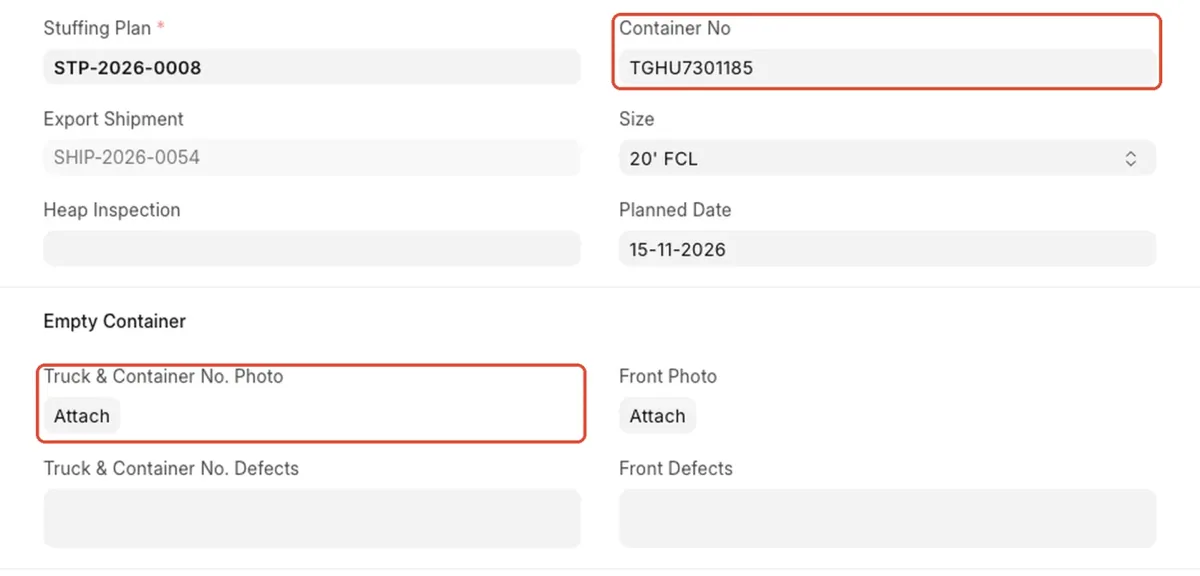
The photo fields show Attach until you add a file. The Defects fields under the photos are empty.
-
If the container is good, click Actions > Pass Empty.
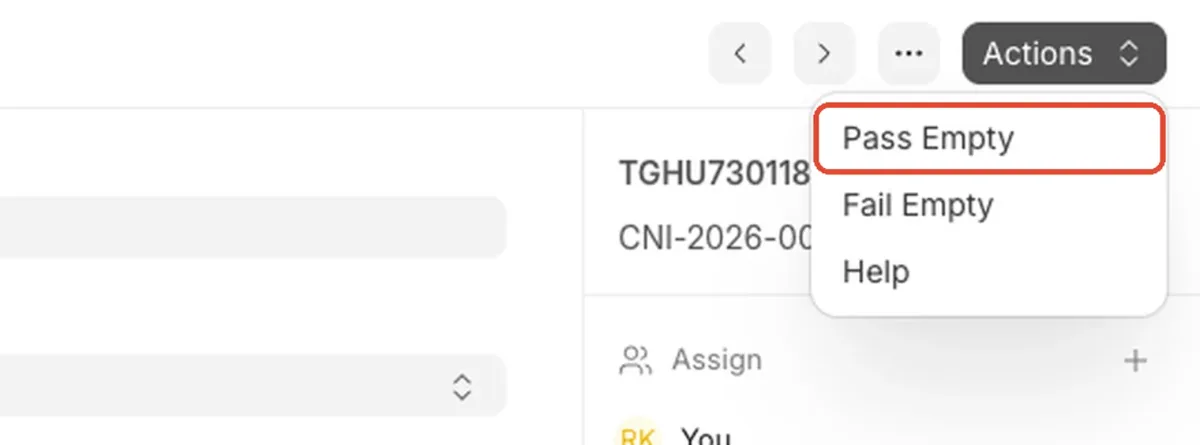
In the Assigned step, the Actions menu shows Pass Empty and Fail Empty.
-
If the container has damage, do these steps:
- In the Defects field under the photo, select each defect from the list, for example Hole in Inside Defects.
- Click Save.
- Click Actions > Fail Empty.
Check it worked
The container inspection shows the step Empty Passed. If you failed it, the step is Empty Failed.
Good to know
| Message | What to do |
|---|---|
| Fill Container No, Truck & Container No. Photo before moving to Empty Passed. | Fill the fields that the message names, click Save, then do the action again. The message shows only the missing fields. |
| Tag at least one defect on the container to fail the empty check. | Add a defect in a Defects field. |