
Review a partner registration
A new rice mill can sign up on the website of Navchetan Agro Exports. Priya, the export coordinator, reads the registration, checks the details and then makes the mill a supplier.
At the end of this page, the registration shows Onboarded and the mill is a supplier in the system.
Before you start
- You need the System Manager or the Website Manager role. Priya has the System Manager role. See Users and roles.
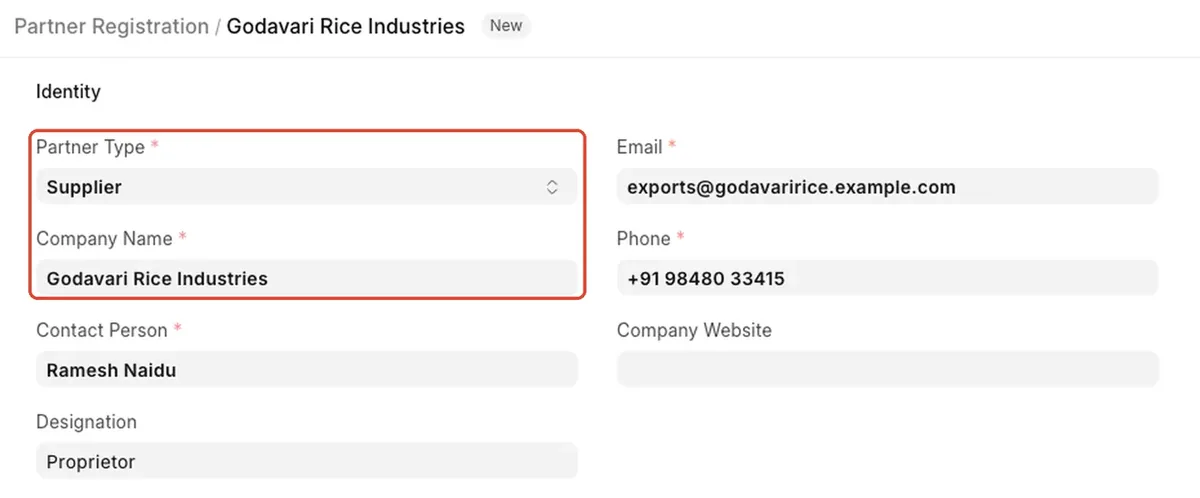
- The pictures on this page show the demo registration of the mill Godavari Rice Industries (PARTNER-2026-0001). It has the status New.
Steps
-
The mill opens the Partner with us page of the website and fills the form Register your interest. The form has three steps: Who you are, Your business and What you trade. A mill selects Supplier in the first step.
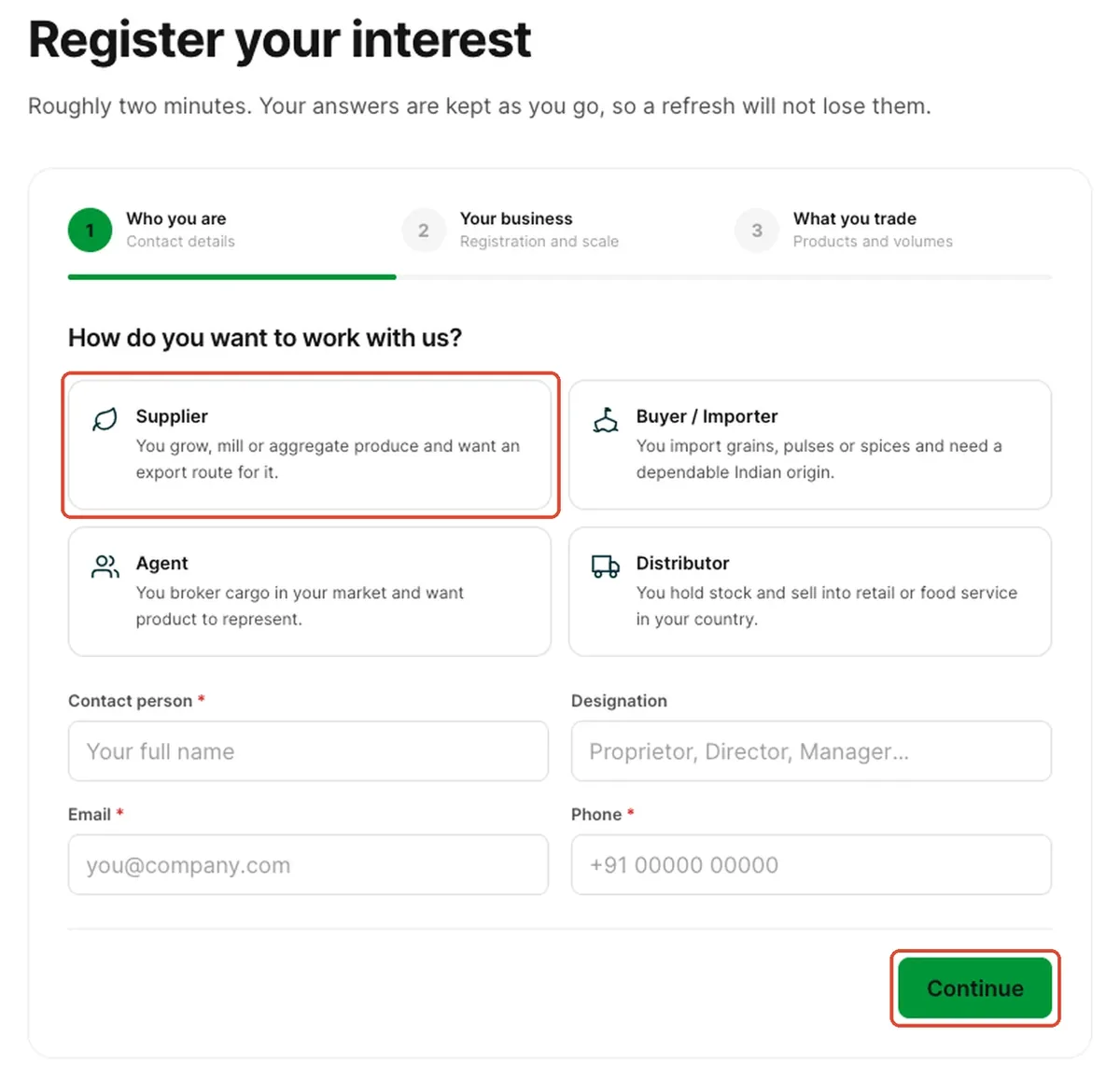
When the mill sends the form, the system makes a Partner Registration with the status New. It also sends an email to the mill to tell it that the registration is received.
-
In the search bar, type Partner Registration and open the list.
-
Open the registration of the mill. In the demo, open Godavari Rice Industries.
-
In the section Identity, read Partner Type, Company Name, Contact Person, Designation, Email and Phone. In the demo, the contact is Ramesh Naidu, the proprietor.
-
Read the other sections:
- Location: Country, State, City and Address. In the demo: India, Andhra Pradesh, Mandapeta.
- Trade Details: GST Number, IEC Code, PAN Number, Years in Business, Annual Turnover Range and Employee Count.
- Product Interests: the products that the mill sells.
- Capacity & Reach: Monthly Capacity and Capacity UOM. In the demo: 1200 MT.
- Attachments: Company Profile and Registration Documents, if the mill added files.
-
In the section Ownership, under Status, select yourself in Assigned To. Type a Follow Up Date and your notes in Internal Notes. The website never shows the internal notes.
-
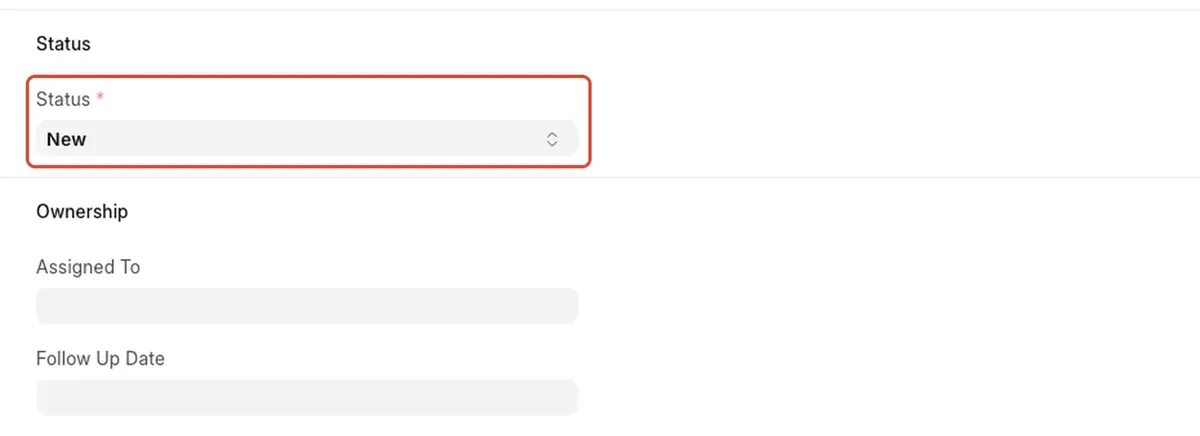
In the section Status, change Status to Under Review. Click Save.
-
Call or email the mill and check the details. When the details are correct, change Status to Verified and click Save.
-
Make the mill a supplier. The registration has no button for this step. Copy the name and the details of the mill into a new supplier, as shown in Add a rice mill.
-
Open the registration again. Change Status to Onboarded and click Save.
Check it worked
- The registration shows the status Onboarded.
- In the search bar, type Supplier and open the list. The list shows the mill.
Good to know
- Status has five values: New, Under Review, Verified, Onboarded and Rejected.
- To refuse a registration, set Status to Rejected. The field Rejection Reason shows. Type the reason and click Save.
- When a new registration has the same Email, Phone or GST Number as an older one, the system shows the message "Possible Duplicate" with the older registration numbers.
- The same form is for buyers, agents and distributors. The Partner Type of their registrations is Buyer (on the website: Buyer / Importer), Agent or Distributor. This chapter is about mills only.