
Each person who signs in needs a user. The roles of the user tell the system which screens the person can open. The administrator makes the users for three groups of people:
- the office staff of Navchetan Agro Exports, for example Priya;
- the inspection agency: the surveyors, for example Ravi Kumar, and the agency manager, Meena Reddy;
- the mills, which use the supplier portal.
At the end of this page, you can give each person the access that they need.
Before you start
- Sign in as a user with the System Manager role. On the demo, Priya has this role.
- Get the email address of each person. For the inspection agency, also get the mobile number.
Steps
Look at the users of the demo
-
In the search bar, type User List and press Enter. The User list opens. Among others, it shows the demo users Priya Sharma, Meena Reddy, Ravi Kumar, Kiran Das and Suresh Rao, the mill user.
-
Click Ravi Kumar. The user form opens.
-
Click the Roles & Permissions tab.
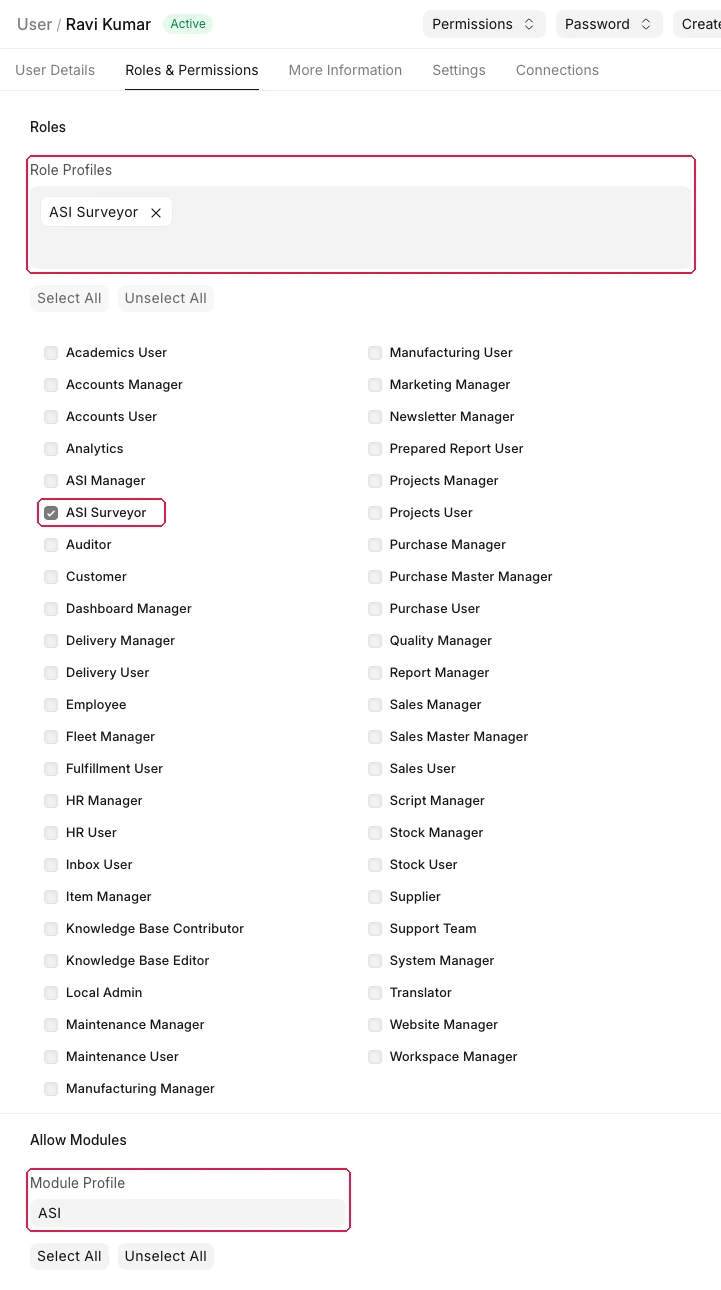
- Role Profiles shows ASI Surveyor. The role profile gives Ravi the ASI Surveyor role, so ASI Surveyor is ticked in the list of roles. Ravi has no other role.
- Module Profile shows ASI. The module profile hides the apps that the inspection agency does not use.
-
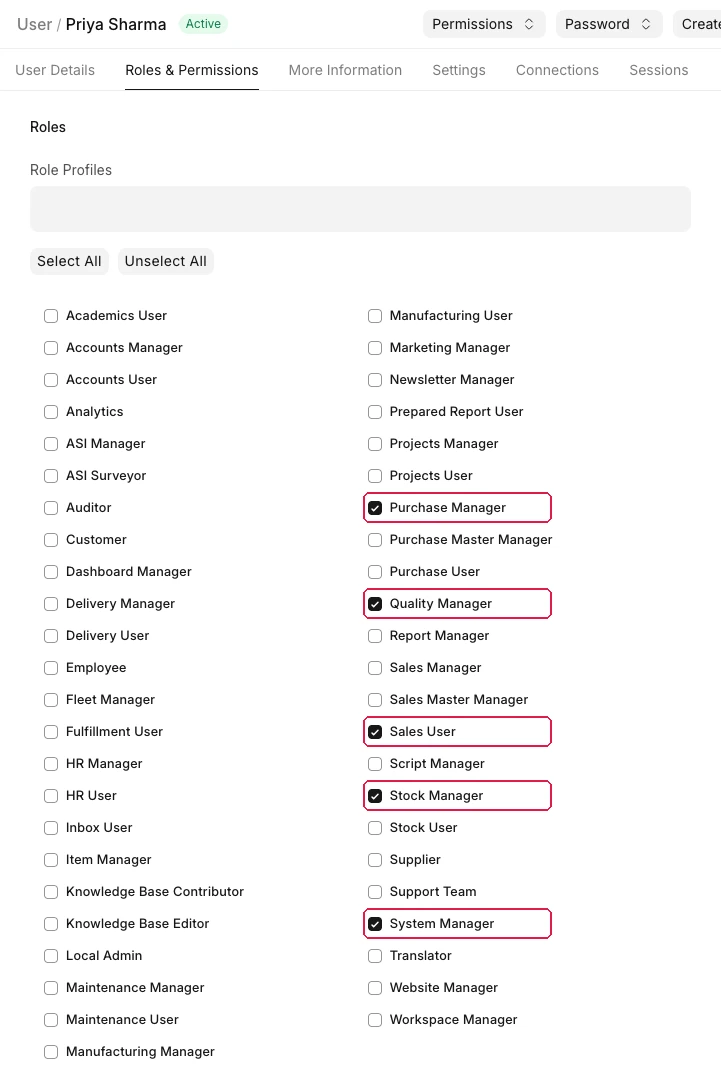
Go back to the User list and click Priya Sharma. Click the Roles & Permissions tab. Priya has no role profile. Her roles are ticked one by one:
| Role | What it gives Priya |
|---|---|
| System Manager | The costings, the shipments, the costing templates, the ports and Export Settings. |
| Purchase Manager | The Cheapest Port Board, the route map, the Landed Cost Board, the mill rates and the purchase orders. |
| Stock Manager | The stuffing plans, the container inspections and the purchase receipts. |
| Quality Manager | The heap inspections: accept or reject a heap. |
| Sales User | The opportunities, the quotations and the sales orders. |
Look at the role profiles
-
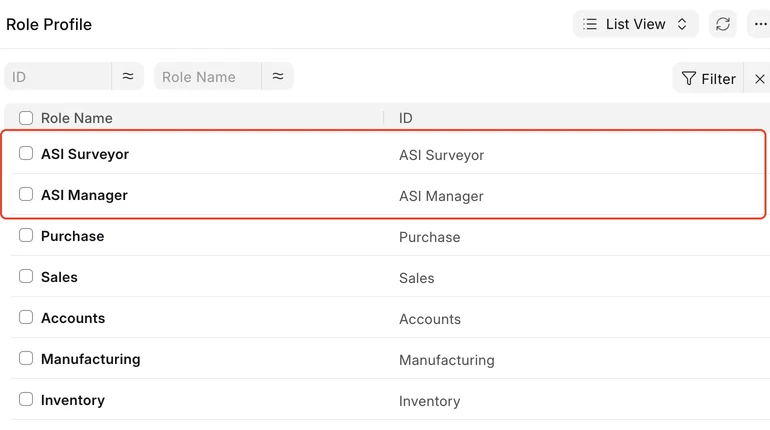
In the search bar, type Role Profile List and press Enter. The Role Profile list opens.
| Role profile | Who gets it | What the person can do |
|---|---|---|
| ASI Manager | The agency manager | See every container inspection, every heap and every stuffing plan. Pick the surveyor for each day. |
| ASI Surveyor | Each surveyor | See and fill only the container inspections and the heaps that are assigned to the surveyor. A surveyor cannot open the stuffing plans. |
The system makes these two role profiles and the ASI module profile. You do not make them yourself. The other role profiles in the list, for example Purchase and Sales, come with ERPNext. The guide does not use them.
Add a user
- Go to the User list and click + Add User.
- Enter the Email, the First Name and the Last Name. To send the person an email with a link to set the password, keep Send Welcome Email ticked.
- For a surveyor or the agency manager:
- Click the Roles & Permissions tab.
- In Role Profiles, select ASI Surveyor or ASI Manager.
- In Module Profile, select ASI.
- Click the More Information tab and enter the Mobile No.
- Click Save.
- For a person in the office:
- Click Save. The Roles & Permissions tab now shows the list of roles.
- Click the Roles & Permissions tab and tick the roles from the table in step 4 that the person needs.
- Click Save again. Until you tick a role, the person cannot open the Desk.
A mill does not get a Desk user. It gets a portal user on its supplier record. See Give a mill access to the supplier portal.
Check it worked
Ravi signs in. The left sidebar shows My Inspections, and the workspace shows his containers and heaps. When Ravi opens an Export Costing link, the system tells him that he does not have the permission. See Sign in on your phone.
Good to know
- To let the inspection agency sign in with a mobile number, open System Settings. In the section Login Methods, tick Allow Login using Mobile Number and save. Then the first field of the Sign In page reads Email / Mobile. Each user needs a Mobile No.
- To stop a person from signing in, open the user and untick Enabled. Do not delete a user who did work in the system.
- The Cheapest Port Board and the route map open only for users with the System Manager or Purchase Manager role.
- When a surveyor leaves the agency, assign the open work of the surveyor to a different surveyor before you disable the user. See Assign the day.