
Ports and their map pins
The administrator adds each port that the cargo leaves from or goes to, and puts a pin on the map for it.
At the end of this page, your port has a pin. It shows on the map of the Cheapest Port Board and on the route map.
Before you start
- You need the System Manager role.
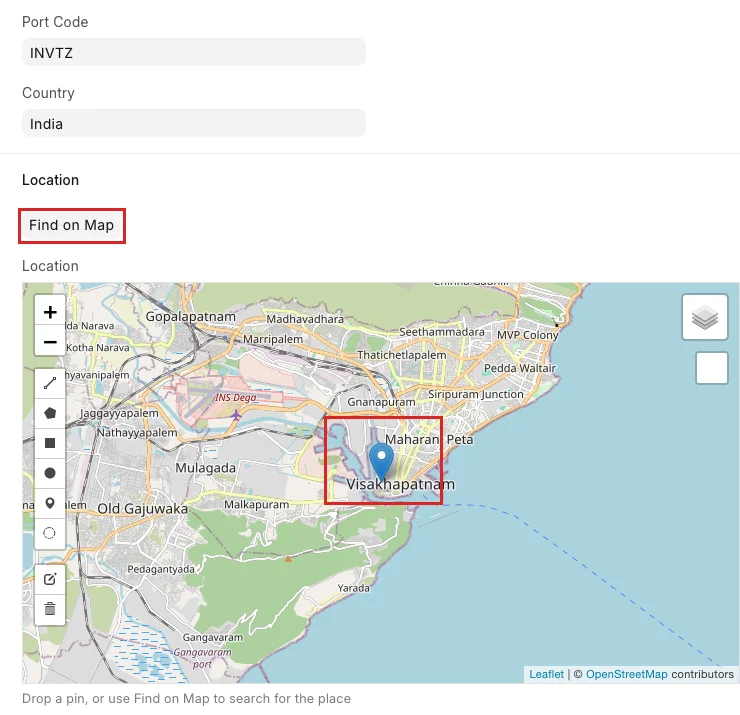
- The demo data has seven ports. Open Visakhapatnam to see a finished one with its pin. See Install and remove demo data.
Steps
See a finished port
-
In the search bar, type Port and open the list. The list of ports opens.
-
Click Visakhapatnam. The port shows its Port Code, INVTZ, its Country, India, and its pin on the Location map. The name of the port shows at the top of the form.
Add your port
-
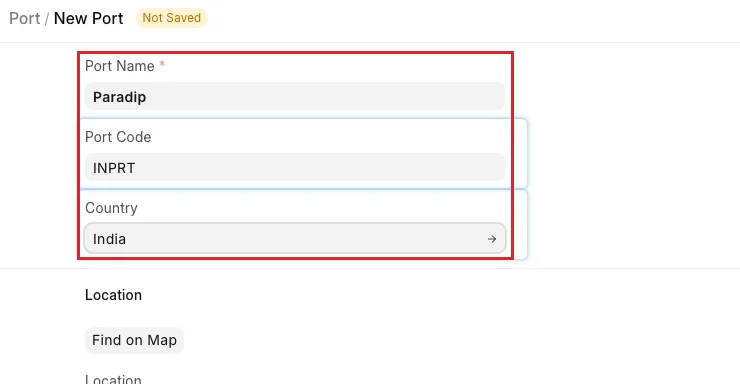
On the list, click Add Port. If a small dialog opens, click Edit Full Form.
-
Fill the fields:
- Port Name: the name of the port, for example "Paradip". The name is the name of the record. You cannot change it easily after Save.
- Port Code: the UN/LOCODE of the port, for example "INPRT".
- Country: the country of the port, for example India.
Put the pin on the map
-
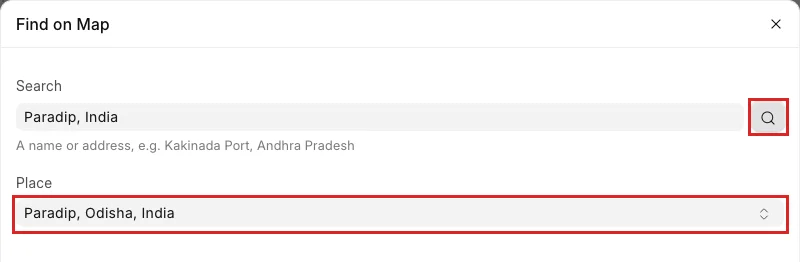
In the Location section, click Find on Map. The Find on Map dialog opens. Search shows the port name and the country, for example "Paradip, India".
-
Click the search button next to Search. Place shows the first place that the system found. To see the other places, click Place. If the place is not correct, change the text in Search, for example "Paradip Port, Odisha", and click the search button again.
-
Select the correct place and click Save. The dialog closes and the port saves with the pin.
You can also put the pin by hand: on the Location map of the port, click the marker tool on the left of the map, then click the place of the port. Then click Save.
Check it worked
-
On the port, the Location map shows the pin.
-
In the search bar, type Cheapest Port Board and open it. A port of loading shows on the map when it has a pin and a mill has a rate for it today. See Read the Cheapest Port Board.
-
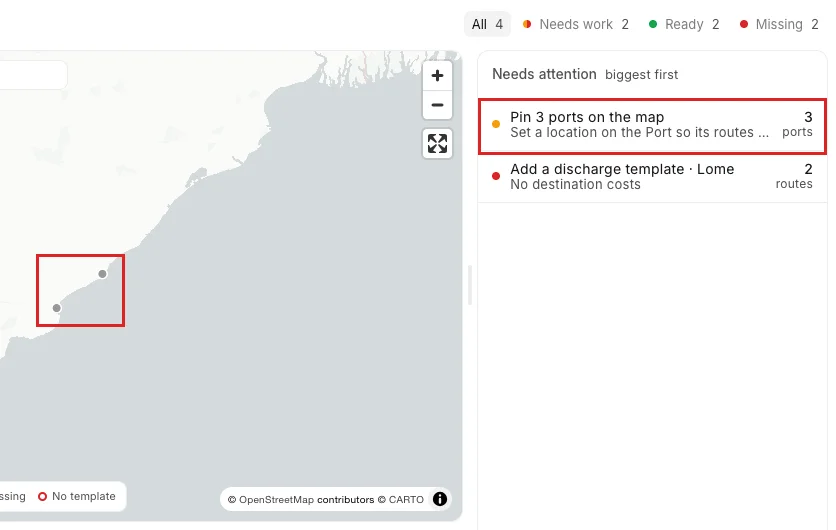
In the search bar, type Export Costing Template and open it. This is the route map. Each port with a pin shows as a dot on the map. A route shows as a line only when its two ports have a pin.
If a port of a route has no pin, the Needs attention panel shows Pin N ports on the map. Click it to see the ports, then click a port to open it and add the pin.
Good to know
- Add the ports of loading in India and the ports of discharge at the buyer, for example Cotonou in Benin and Lome in Togo.
- A port with no pin works in costings and shipments. Only the maps leave it out.
- In the demo, only Visakhapatnam and Kakinada have a pin. The route map asks for pins on Cotonou, Lome and Nhava Sheva.
- If Find on Map finds nothing, Place shows "No place found. Try another search, or drop the pin on the map by hand."
- The map in the Find on Map dialog does not move to the place that you select. Check the place by its name in Place. After Save, the Location map of the port shows the pin.
- The mills use the same Find on Map dialog for their supply location. See Add a rice mill.