
From a new shipment to the vessel
At the end of this chapter, you can take one export shipment from the day you create it to the day the vessel sails.
Before you start
Make the shipment from a won Export Costing with Create > Sales Order & Shipment. See Make the order and the shipment and The demo story.
The story
A buyer in Cotonou orders 2 containers of IR64 parboiled rice. Priya, the export coordinator, makes a shipment from the won costing. The mill has 1,080 bags of 50 kg ready at its yard, which is 54.00 MT. Ravi and Kiran are surveyors at the inspection agency. They check the rice and the containers at the mill. Meena, the manager of the agency, sends them to the mill on the correct days.
The story shipment is the Shipped one (SHIP-2026-0051). The other four demo shipments show the same work at earlier steps.
| Status | Shipment | Steps you can see on it |
|---|---|---|
| Planned | SHIP-2026-0055 | Complete the shipment details, make the stuffing plan, create the inspections, assign the day, add a heap |
| Inspecting | SHIP-2026-0054 | Inspect the heap, accept or reject the heap, inspect the empty container |
| Loading | SHIP-2026-0053 | Load and seal |
| Ready to Ship | SHIP-2026-0052 | Watch progress and warnings, mark as shipped |
| Shipped | SHIP-2026-0051 | Prepare the export documents, track the vessel, raise the sales invoice |
Who does what
Do the pages in this order.
| Page | Who |
|---|---|
| Complete the shipment details | Priya |
| Make the stuffing plan | Priya |
| Create the inspections | Priya |
| Assign the day | Meena, then Priya |
| Add a heap | Priya |
| Inspect the heap | Ravi |
| Accept or reject the heap | Priya |
| Inspect the empty container | Ravi |
| Load and seal | Ravi |
| Watch progress and warnings | Priya |
| Prepare the export documents | Priya |
| Mark as shipped | Priya |
| Track the vessel | Priya |
| Raise the sales invoice | Priya |
| Undo or fix a mistake | Priya |
| Ravi's quick start | Ravi |
Check it worked
- Click Home in the left sidebar, then click Export Shipment.
- Click the Planned shipment (SHIP-2026-0055). The Status is Planned.
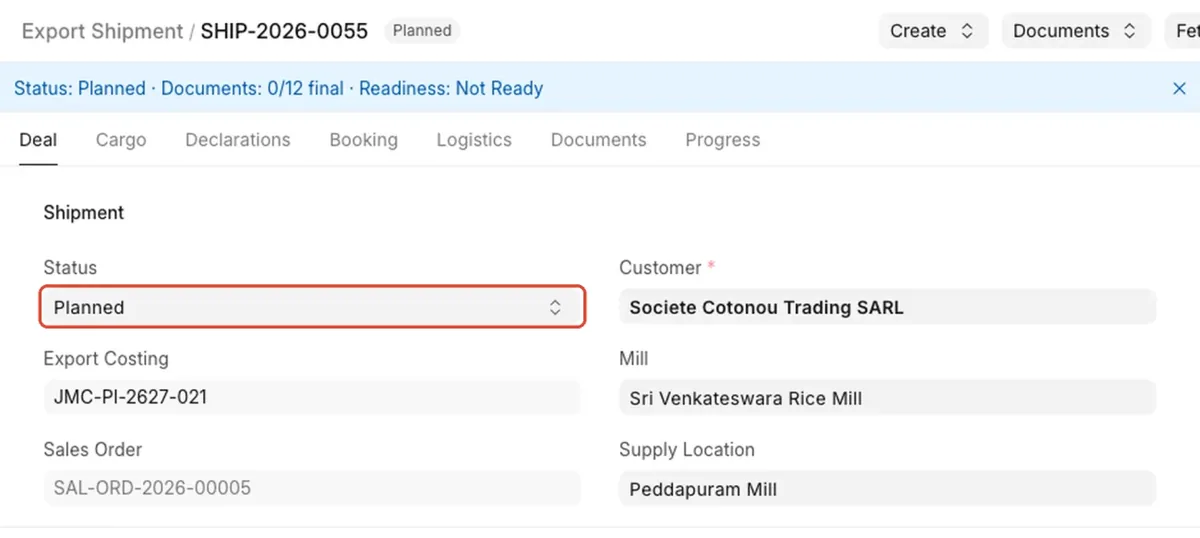
- Go back to the list and click the Shipped shipment (SHIP-2026-0051). The Status is Shipped. This is where the chapter ends.
Good to know
The shipment status changes by itself as the work moves on. You do not set it, except Cancelled.
| Status | When |
|---|---|
| Planned | No heap and no container inspection has started. |
| Inspecting | The stuffing plan has a heap, or a container inspection is past Planned. |
| Loading | A container inspection is in Loading or a later step. |
| Ready to Ship | Every container has a container inspection, and all of them are Done. |
| Shipped | Priya clicked Mark as Shipped. |
| Cancelled | Priya sets it by hand in Status when the deal stops. |
After Shipped or Cancelled, the status does not change again.
Readiness follows the status. Loading gives Partially Ready. Ready to Ship and Shipped give Ready. Every other status gives Not Ready.
When the shipment is made, the system also makes two draft Purchase Orders: one for the rice to the mill and one for the bags. Priya submits the rice Purchase Order before she adds a heap. In the demo data, the rice Purchase Order of every shipment is already submitted.