
Complete the shipment details
Priya, the export coordinator, makes the shipment from the won costing. The costing fills most of the form. Priya adds what only Priya knows: the terms, the parties on the bill of lading and the vessel.
At the end of this page, the shipment is saved with the terms, the notify parties and the vessel filled.
Before you start
Read From a new shipment to the vessel and Make the order and the shipment. Priya signs in as shown in Sign in and find your way.
The pictures on this page show the Shipped shipment (SHIP-2026-0051), because it has every field filled. On the Planned shipment, the same fields start from the costing and are partly empty.
On your own shipment, use your own values: your buyer's notify parties, your vessel and the container numbers that the shipping line gives you. The values in the pictures belong to the demo shipment. Do not copy them.
Steps
-
In the search bar, type Export Shipment and open the shipment of the deal. On the demo, open the Shipped shipment to see every field filled.
-
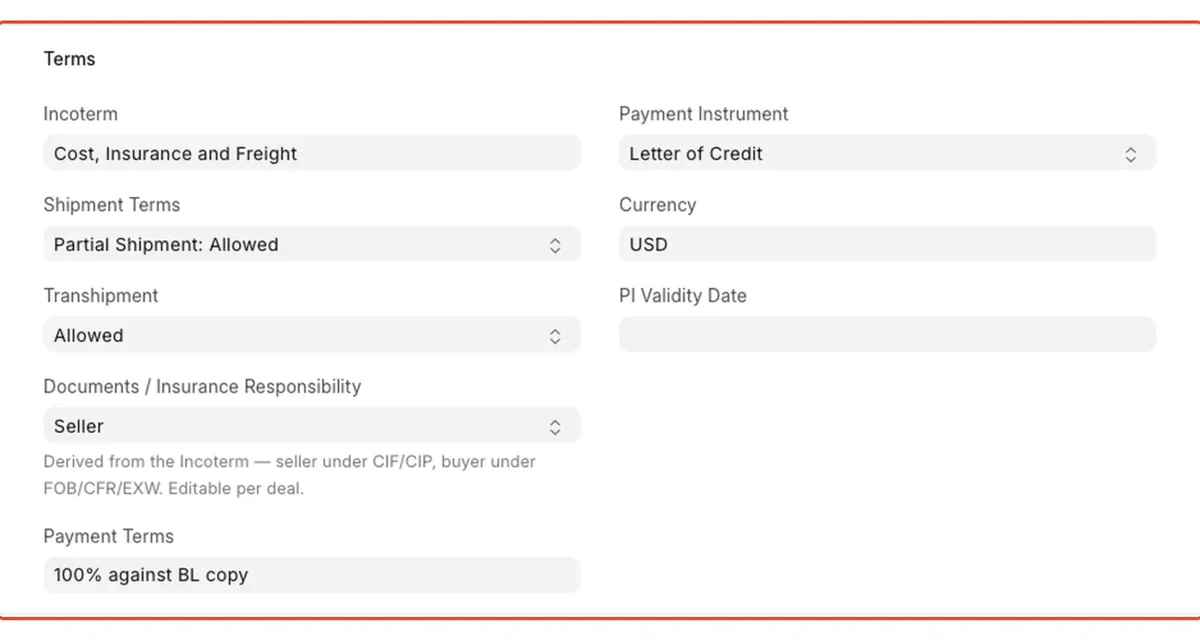
On the Deal tab, check the section Terms:
- Incoterm: the delivery term of the deal, for example "Cost, Insurance and Freight".
- Shipment Terms: for example "Partial Shipment: Allowed".
- Transhipment: Allowed or not.
- Documents / Insurance Responsibility: the system fills it from the Incoterm (the seller under CIF and CIP, the buyer under FOB, CFR and EXW). You can change it for one deal.
- Payment Terms, Payment Instrument and Currency: for example "100% against BL copy", Letter of Credit and USD.
- PI Validity Date: the last day of the proforma invoice, if the buyer needs it.
-
In the section Export Incentives, fill Drawback Code if the shipment has one.
-
In the section Consignee, check Consignee Name and Consignee Address. When Consignee Name or Consignee Address is empty, the system fills it from the buyer when you save.
-
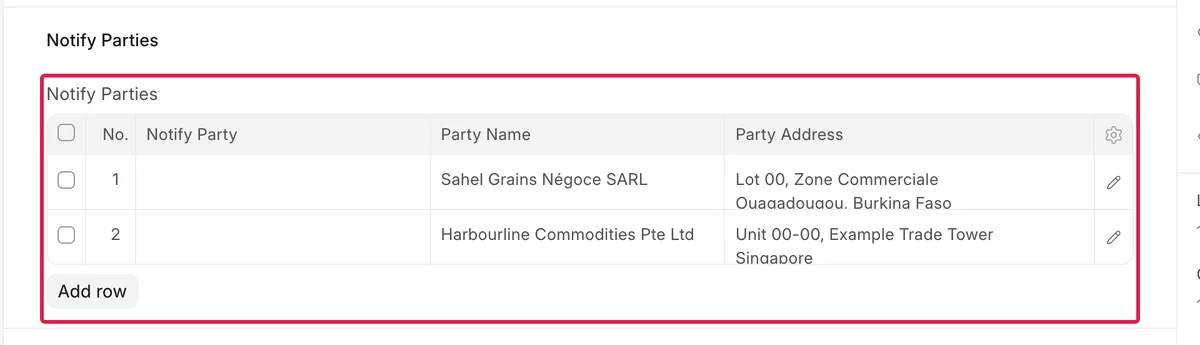
In the table Notify Parties, click Add row. Pick the Notify Party, or type Party Name and Party Address. The Shipped shipment shows Sahel Grains Négoce SARL and Harbourline Commodities Pte Ltd.
-
On the Cargo tab, check Marks & Nos. In the table Containers, fill Container No for each container when the shipping line gives the numbers. The inspection of each container also records the number.
-
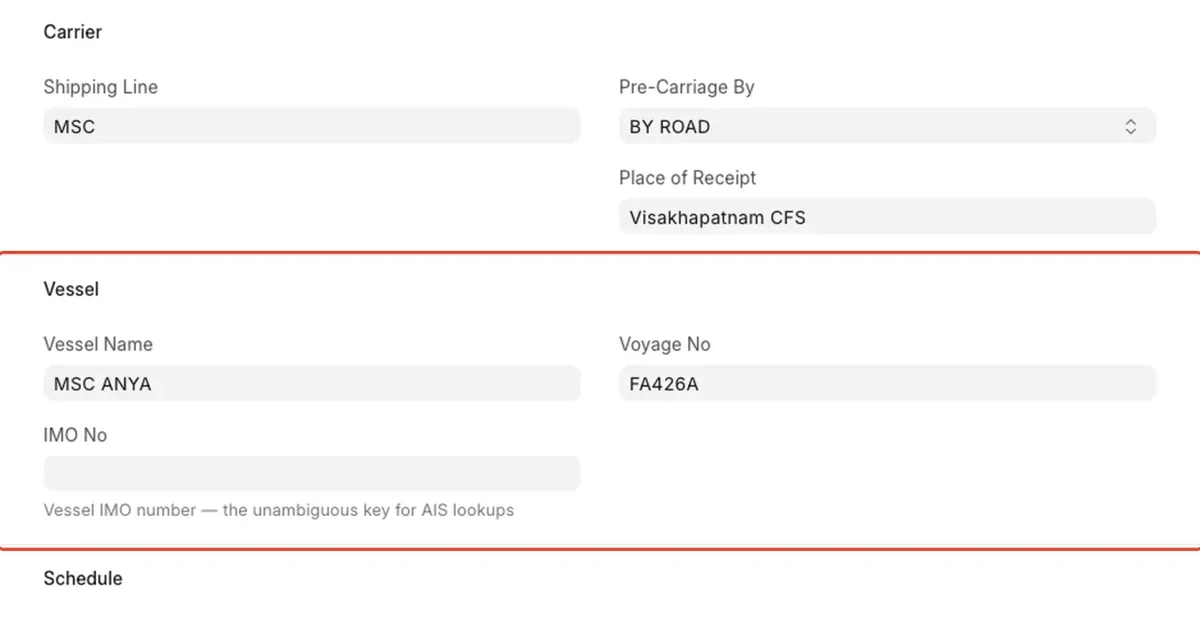
On the Logistics tab, fill the section Carrier: Shipping Line, Pre-Carriage By and Place of Receipt.
-
In the section Vessel, fill Vessel Name, IMO No and Voyage No. In the section Schedule, fill Estimated Time of Departure and Estimated Time of Arrival. Leave Actual Time of Departure empty until the vessel sails.
-
Click Save.
Check it worked
- The shipment saves with no error message.
- On the Deal tab, Notify Parties lists every party of the bill of lading.
- On the Cargo tab, Containers shows a Container No in each row.
- On the Logistics tab, Vessel Name shows the vessel, MSC ANYA on the Shipped shipment.
Good to know
- The Create menu shows more buttons when they apply.
- Create > Create LC makes a Contract Term for the letter of credit. It shows only when Payment Instrument is Letter of Credit, the costing has a Sales Order (the deal is won), and the shipment has no Contract Term yet. The exim apps must be installed. The Shipped shipment has one, so the button is hidden there. The Contract Term (LC) field shows its number.
- Create > Purchase Orders makes the Purchase Orders to the mills. It shows only while a mill of the shipment has no Purchase Order. See Make the stuffing plan.
- The tab Booking has the gate dates. It is the next step.