
The vessel has sailed. Priya follows it to Cotonou and sees if it is late.
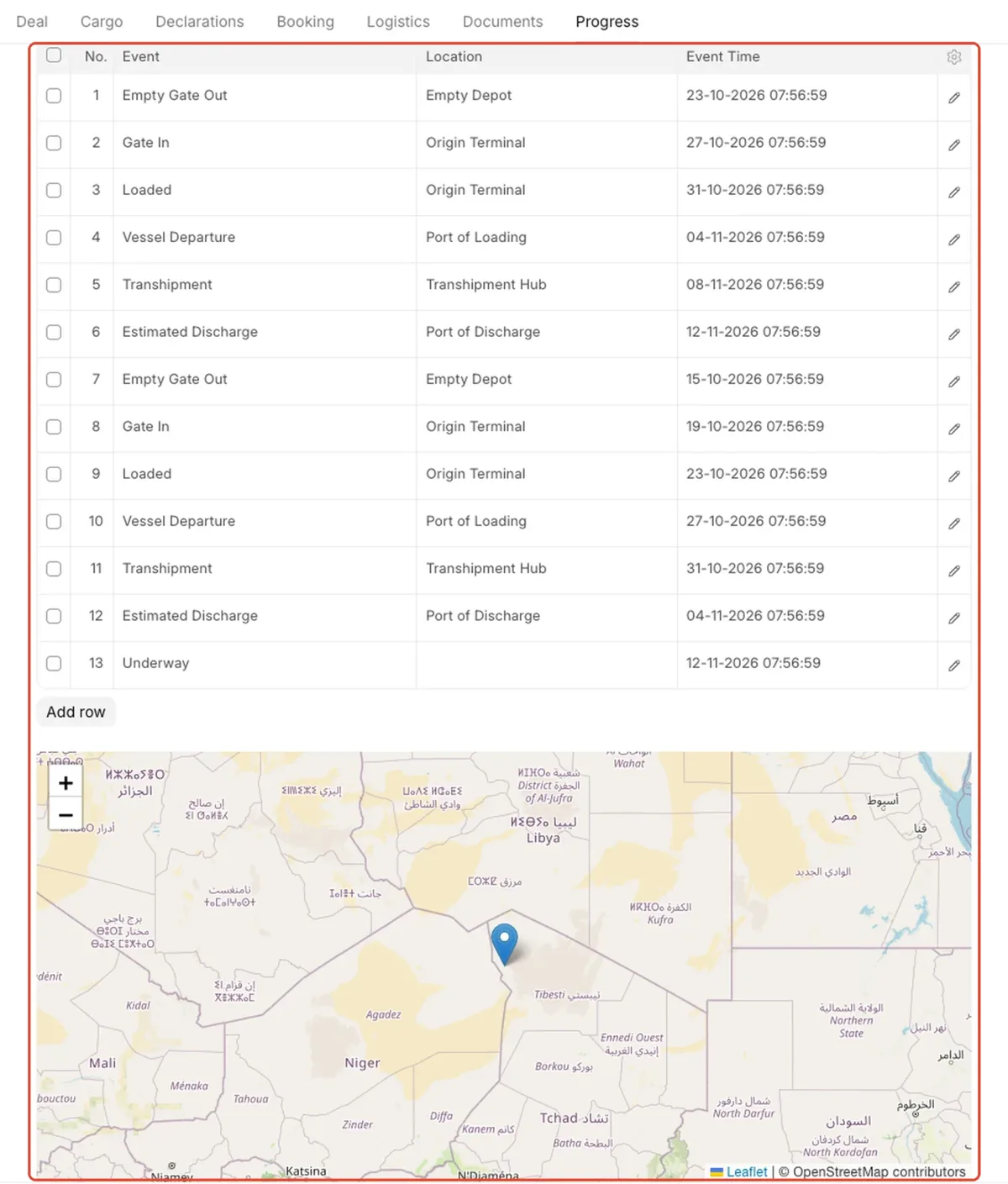
At the end of this page, the Tracking Events table has rows for the shipment and the Vessel Map shows where the vessel is.
Before you start
Finish Mark as shipped. Priya signs in as shown in Sign in and find your way.
The pictures on this page show the Shipped shipment (SHIP-2026-0051). It already has 13 tracking events, so you can read them without a request to an outside service. Do not click Fetch Tracking on the demo shipment: the button calls the provider and replaces the events.
Steps
-
In the search bar, type Export Shipment and open the Shipped shipment to read its tracking.
-
On your own shipment, click Fetch Tracking at the top right to get new events. The button shows on every saved shipment. The system shows "Fetching tracking" and "Contacting provider..." while it asks the provider.

-
Open the Progress tab. Scroll to Live Tracking.
-
Read the Tracking Events table. Each row has an Event, a Location and an Event Time. The demo shipment has 6 events for each container, from Empty Gate Out to Estimated Discharge, then one row for the vessel.
-
Look at the Vessel Map. The pin shows the last known position of the vessel.
-
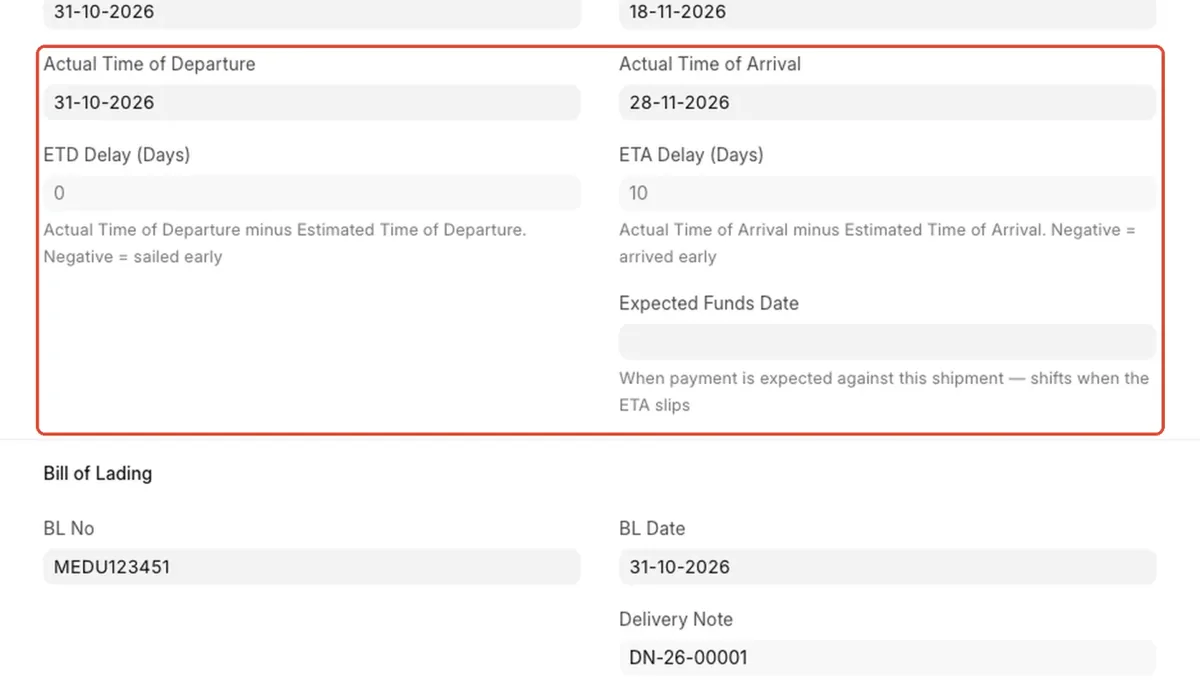
Open the Logistics tab. Under Schedule, read the dates and delays. Under Bill of Lading, read BL No and BL Date.
Check it worked
- The Tracking Events table has rows. After Fetch Tracking, the rows are the ones the provider sent, and the system replaces the old rows each time.
- The Vessel Map shows a pin. If the provider has no position for the vessel, the map stays empty and the table still shows the container events.
- On the Shipped shipment, ETA Delay (Days) is 10. The green line at the top says "Arrived 10 days late". A negative number means the vessel arrived early.
Good to know
- The Tracking Provider is a setting. Open Export Settings, tab Live Tracking, and read Tracking Provider. The demo site uses Mock, which gives sample data and needs no key. Maersk and Vessel AIS need their API keys in the same tab. See Export Settings.
- Fetch Tracking saves the new events on the shipment. Only a person who can edit the shipment can use it.
- ETD Delay (Days) and ETA Delay (Days) are read-only. The system works them out from the planned and the actual dates.
- Expected Funds Date is the day the payment is expected. You enter it. Change it when the arrival date slips. It is empty on the demo shipment.